Godot Plugin
Plugin Installation
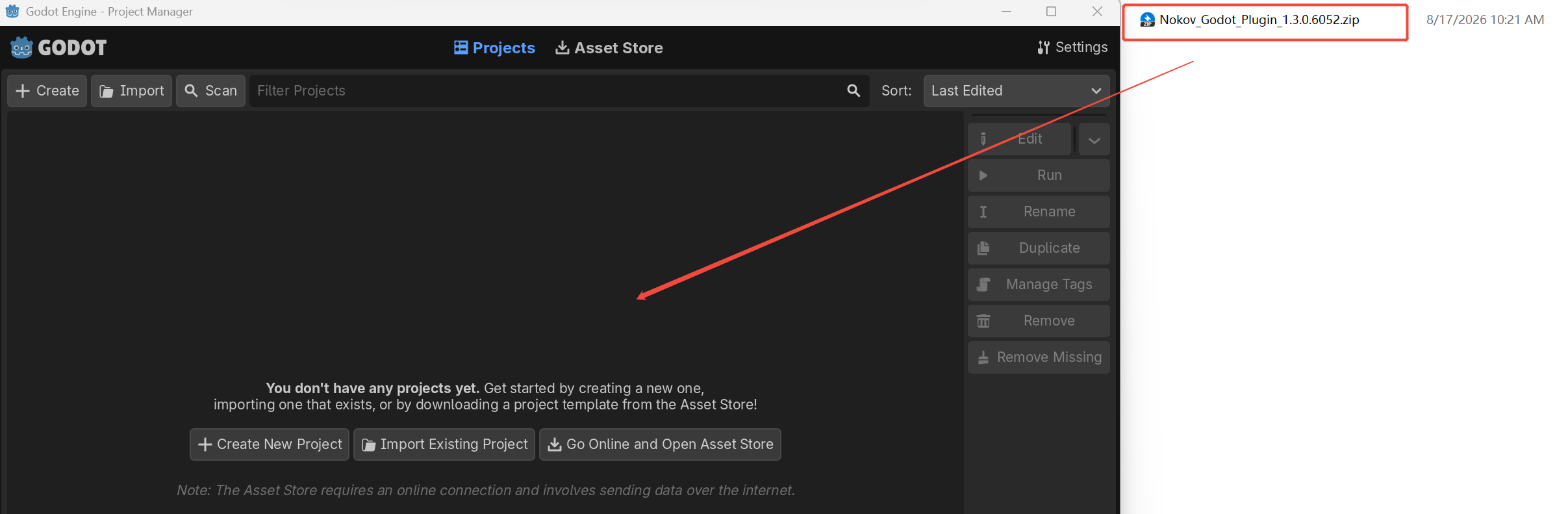
- Open the Godot software and drag the plugin archive into a new project in the engine.
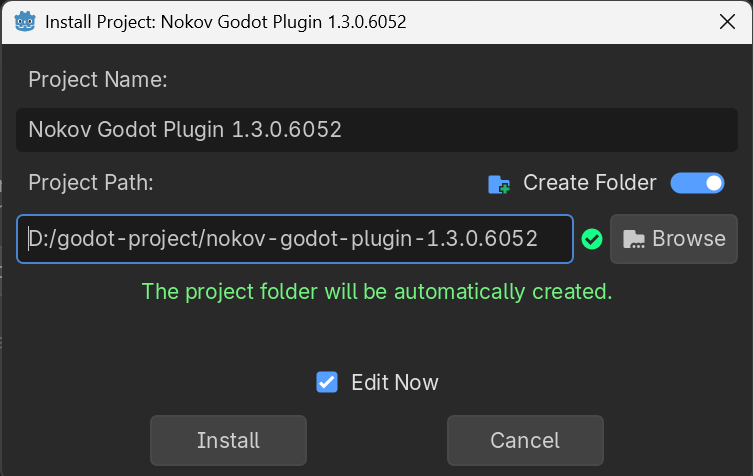
- Enter the project name in the pop-up window, select the save path for the project, and then click "Install".
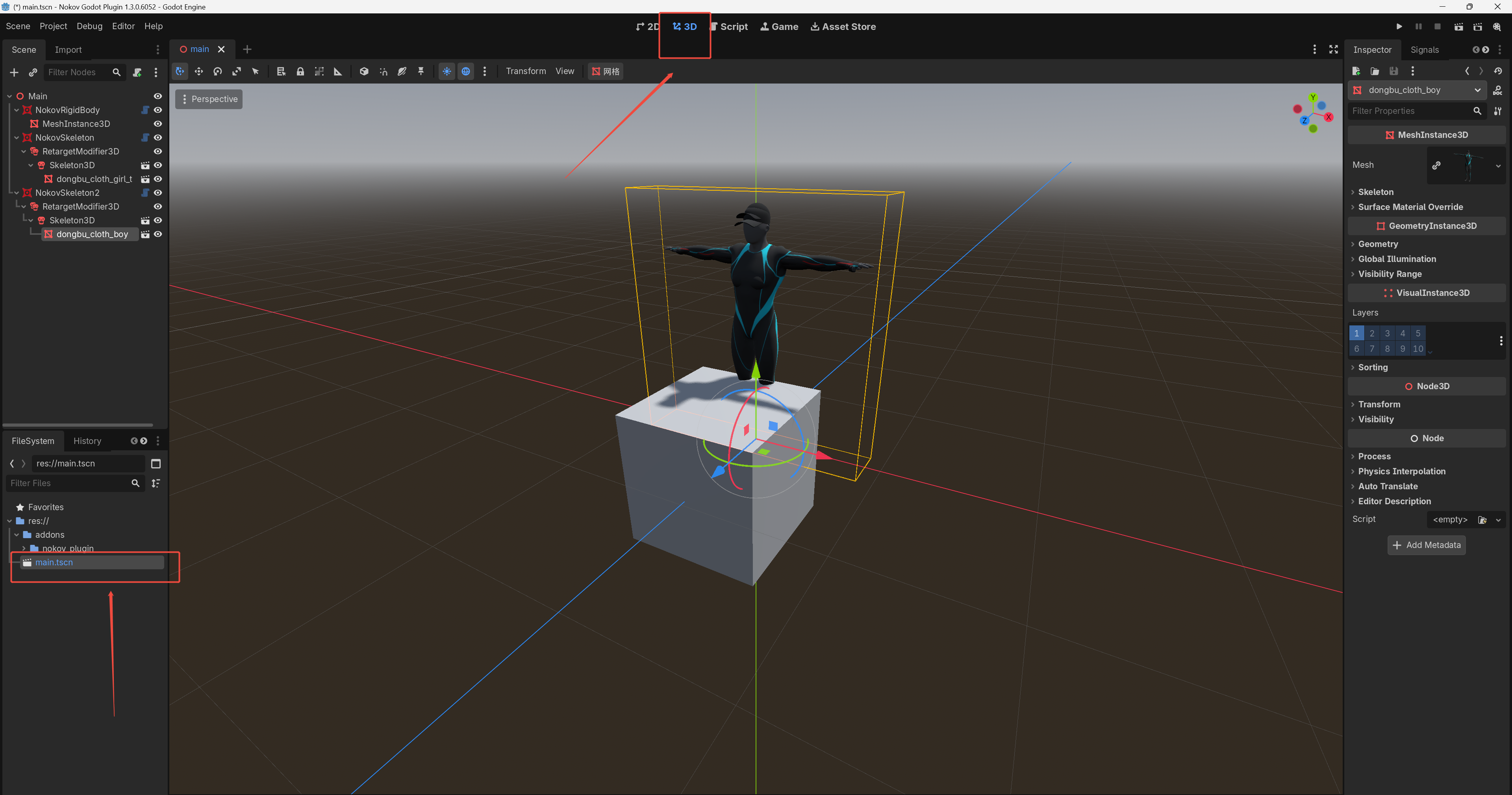
- Locate the
main.tscnfile in the file system, double-click it, and then click "3D" to enter the sample scene.
Human Body Motion Driving
-
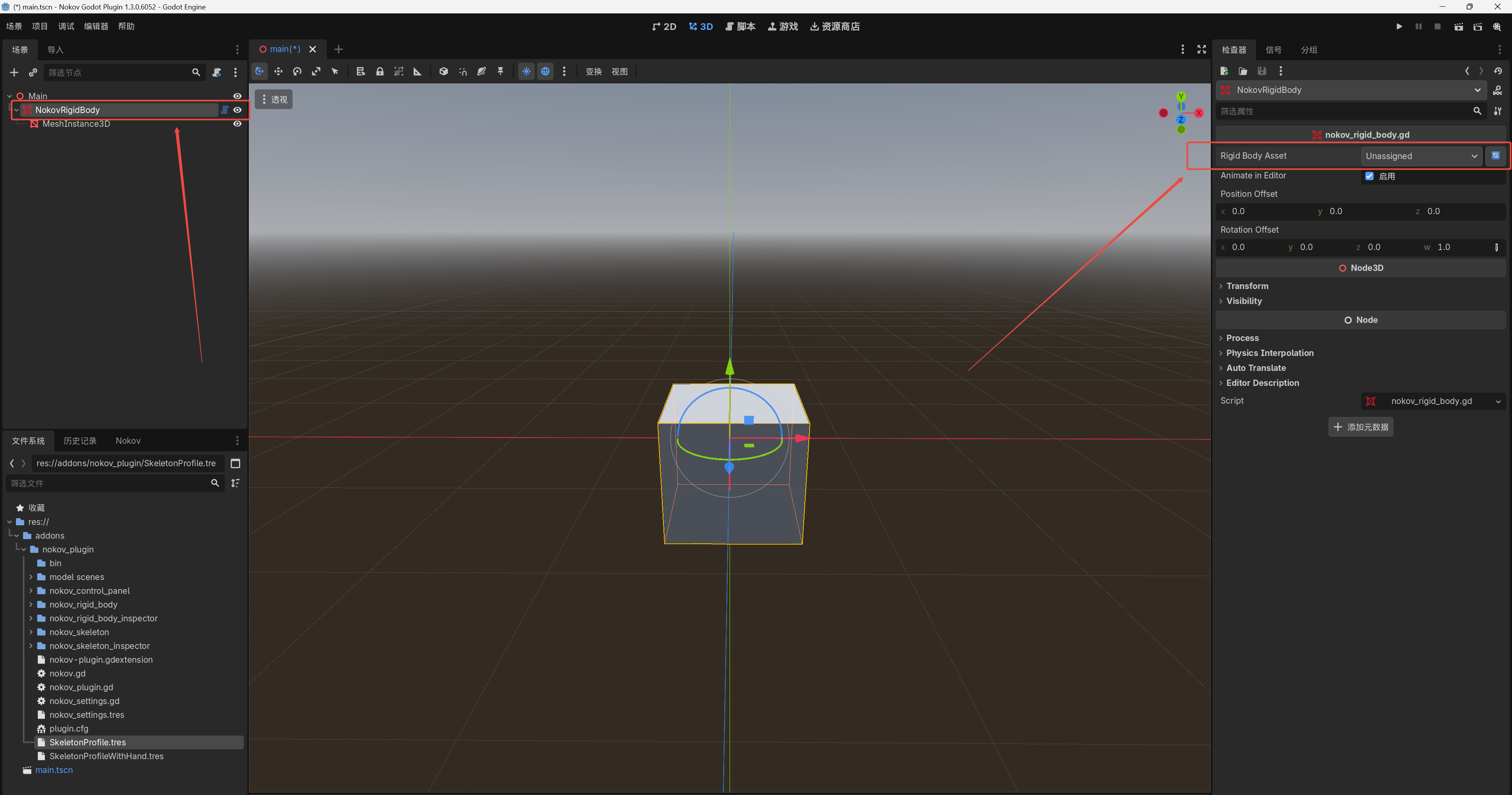
Open the Nokov panel in the Godot plugin. In the Server IP drop-down list, select the SDK address of the XINGYING software broadcast. Before connecting, make sure that the XINGYING software has enabled the SDK stream. Click "Online" to establish the connection.
-
After the connection is successful, the connection status on the Nokov plugin panel will change to a green indicator. If the data connection is interrupted, the connection status will change from green to yellow. When not connected, it will be red. After the connection is successful, the number of assets obtained, their IDs, and their names will be displayed below.
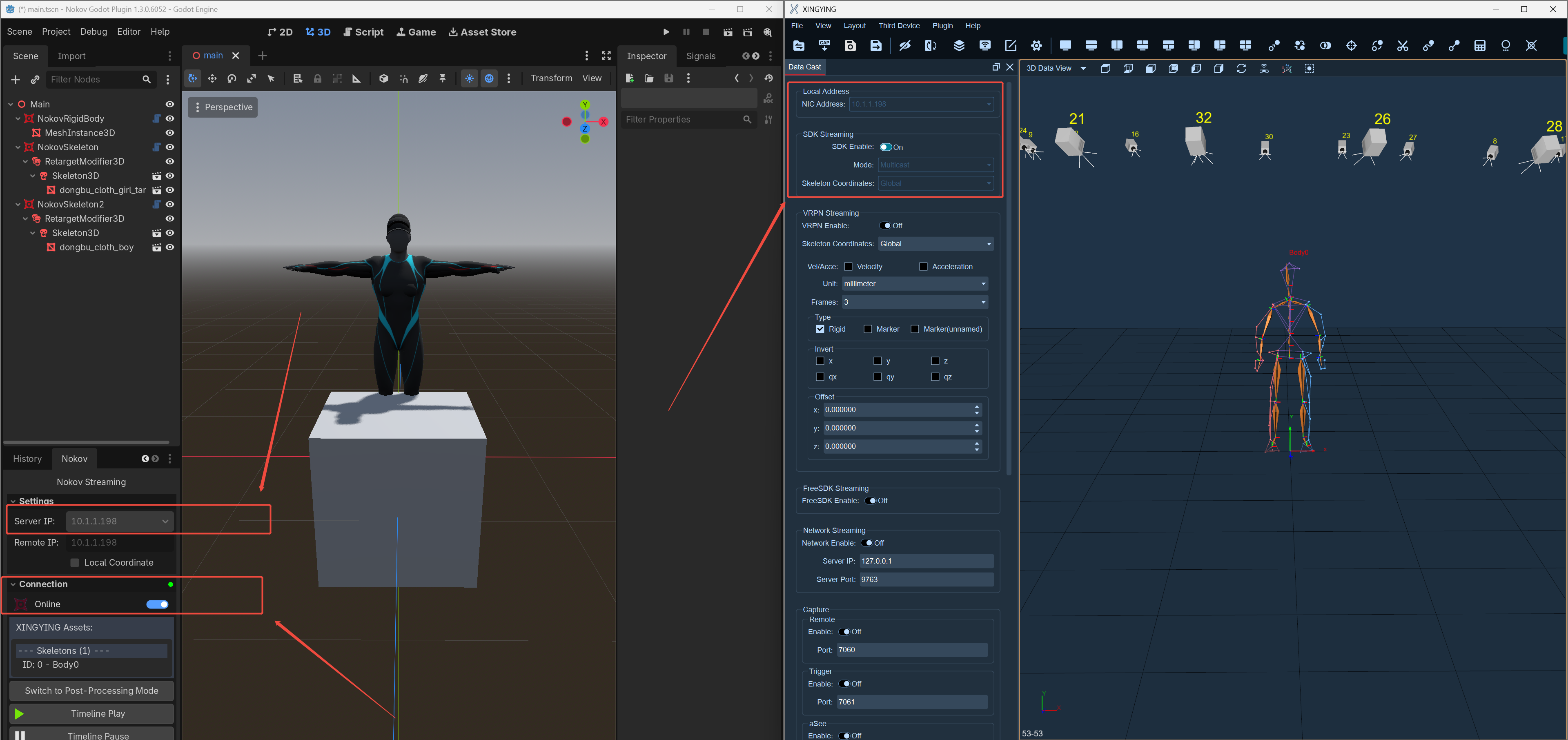
- When the SDK stream of XINGYING selects the local coordinate for the skeleton, you need to click "Local Coordinate" to synchronize the Godot skeleton coordinate mode to the local coordinate system before proceeding with the connection.
- In the example scenario, locate the NokovSkeleton node in the left column of the scene and select it. This node is the one that drives the model's skeleton. On the right side of the inspector, expand the "Skeleton Asset Name" drop-down list and select the human asset. Note: Only Y-axis human data-driven models are supported.

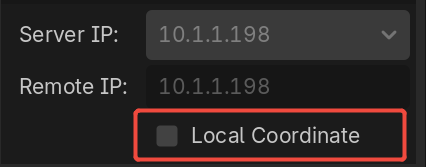
- Click on the sub-node "RetargetModifier3D" of the "NokovSkeleton" node. Drag the "SkeletonProfile.tres" file from the file system onto the "Profile" field in the "Inspector" on the right side. Check the "Use Global pose" option, and the model in the scene will be successfully driven.
- Note: The "SkeletonProfile.tres" file in the file system is the redirection configuration file for a human body without fingers, while the "SkeletonProfileWithHand.tres" file is the redirection configuration file for a human body with fingers. Please select the appropriate one based on the current type of human asset as needed.
Rigid body drive
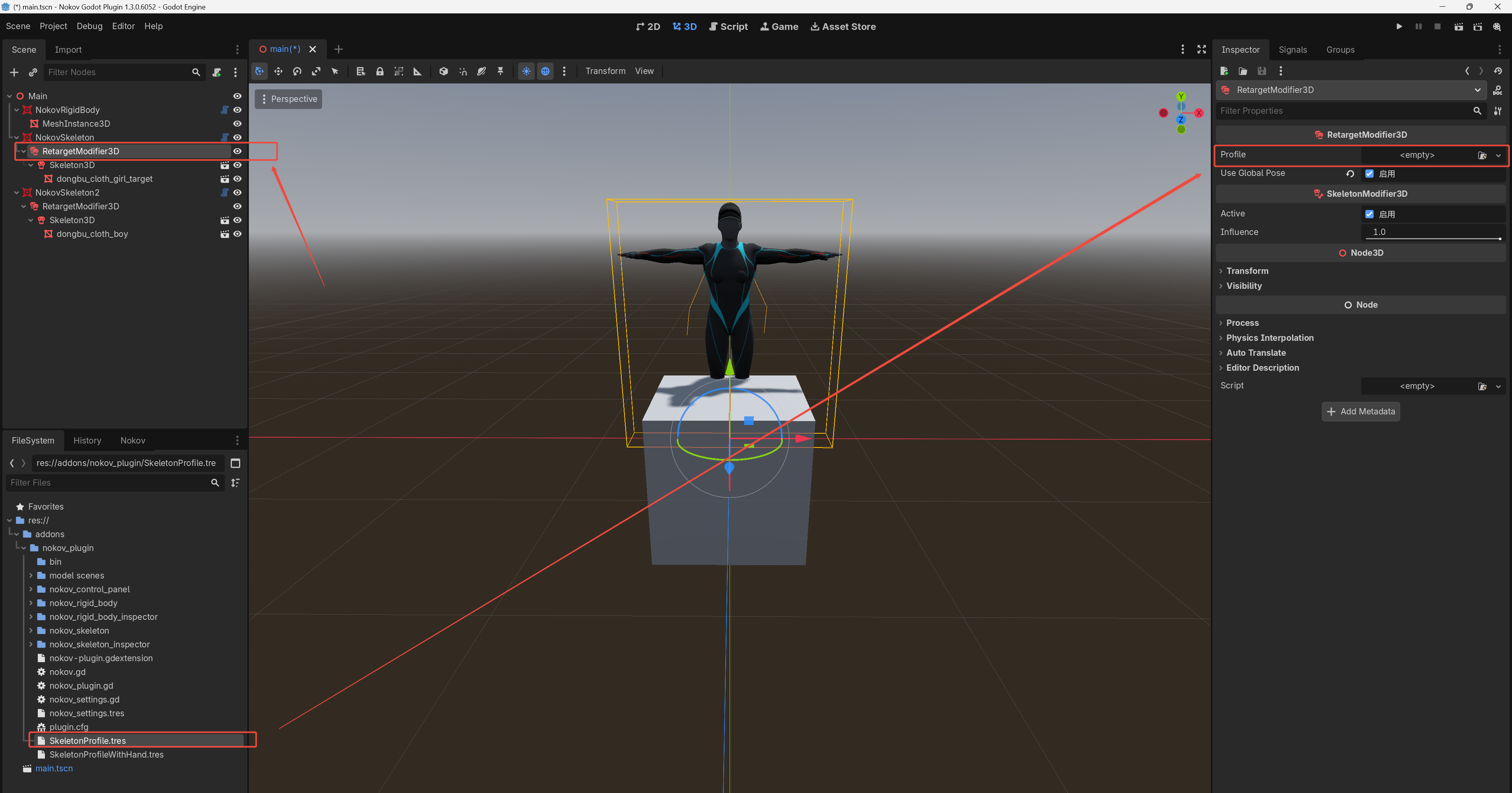
- In the left scene panel of the example scenario, select the "NokovRigid Body" node. This node is responsible for driving the rigid body skeleton. Expand the "Rigid Body Asset" list below the Inspector panel, select the rigid body asset, keep the "Animate in Editor" option enabled, and the model in the scene will be driven.
Data loading and pause/play
Remote Control
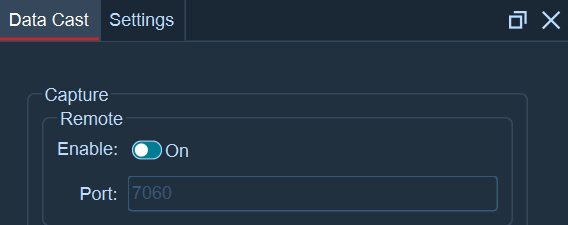
- Enable remote capture in the data broadcast panel of the XINGYING software, with the port set to 7060.
Motion capture data switching
-
In the Nokov plugin panel of the Godot software, click on "Online Connection". Make sure the connection status is "Connected". Clicking the "Switch to Post-Processing Mode" button will open a window.
-
Select the desired .cap motion capture data file and click "Open". In the XINGYING software, the selected .cap motion capture data from the Godot plugin will be automatically loaded. Note: The path of the loaded .cap motion capture file cannot contain any Chinese characters

Pause / Play
-
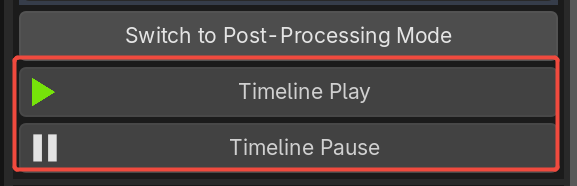
If the data in the XINGYING software is in a paused playback state, clicking the Timeline Play button in the Nokov plugin panel will cause the data to resume playing.
-
Clicking the Timeline Pause button in the Nokov plugin panel will pause the playback of the data in the XINGYING software.
Plugin information and operation manual
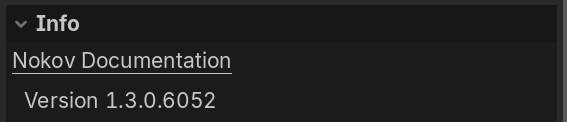
- Expand the "Info" at the bottom of the Nokov plugin panel to view the current version number of the Nokov plugin being used. Click "Nokov Documentation" to quickly navigate to the operation manual on the Nokov official website.