Guide to Connecting Devices and Integrating VRPN Data with UE
MOCUTE-052F Controller
- The MOCUTE-052F controller connects to the computer via Bluetooth. To connect the controller, slide the switch on the side of the controller to the GAME position, power it on, and set it to AUTO mode (the default factory setting). Then, on your computer, enable Bluetooth and connect to the controller.
- MOCUTE-052F Controller Operation Instructions:
- The same button controls power on, power off, and unpairing.

- Power On: Press and hold the power button until the indicator light turns on (approximately 2 seconds), then the system will start up. (Note: Battery must be installed first.)
- Power Off: Press and hold the power-off button until the indicator light turns off (approximately 5 seconds), then the system will shut down. Note: If no wireless device is connected after powering on, the system will automatically turn off after 5 minutes; if a wireless device is connected, the system will automatically shut down after 30 minutes of inactivity.
- Pairing and Connection: After turning on the device, the LED indicator will flash, automatically entering wireless pairing mode. Locate the controller's address and name (MOCUTE-052F-xxx) and tap to connect. Once connected, the LED indicator will turn off. The next time you power on the device, it will automatically reconnect to the last paired wireless device.
- Remove Pairing: With the device powered off, press and hold the power button for more than 8 seconds while turning it on. The indicator light will flash, indicating entry into re-pairing mode, which prevents automatic connection to previously paired devices.
- Power Mode (Factory Default: Auto Mode): By default, the controller operates in Auto mode. Simply press the power button to turn on, and the wireless name "MOCUTE-x-AUTO" will appear.
- Using the MOCUTE-052F Joystick:
- If the device cannot be turned on or off due to an abnormal situation, remove and reinstall the batteries.
- If you cannot connect, press the B+Y+Power buttons to start the joystick. Rotate the joystick two rounds (for calibration) before turning it off. This will restore the factory settings.
- If pairing is abnormal or the wireless name cannot be found, turn off the joystick. Press the power button for more than 8 seconds until the light flashes, then release. This will cancel and ignore all wireless pairings, allowing you to re-pair the device.
Motion capture settings:
- Turn on "VRPN" in the software settings, then connect the camera for playback.
info
Note:
Up to two joysticks can be connected simultaneously for joystick and motion capture connections. Joysticks will be named "joystick1" and "joystick2" based on the order of their connection. Joysticks must be connected to the same computer running the XINGYING software.
Connect VRPN
info
Note:
Ensure that the XINGYING software is in the play state when using "NOKOVVrpnClient.exe".
- Use the test tool "NOKOVVrpnClient.exe" to connect the joysticks. Run "NOKOVVrpnClient.exe" in the "NOKOVVrpnClient" folder. In PowerShell, type
.\NOKOVVrpnClient.exe joystick1@127.0.0.1, or in Command Prompt, type NOKOVVrpnClient.exe joystick1@127.0.0.1. After pressing the joystick buttons or sliding the joystick wheel, the terminal will display the corresponding relationship and its data. Successful terminal response to the joystick button indicates successful connection with XINGYING.
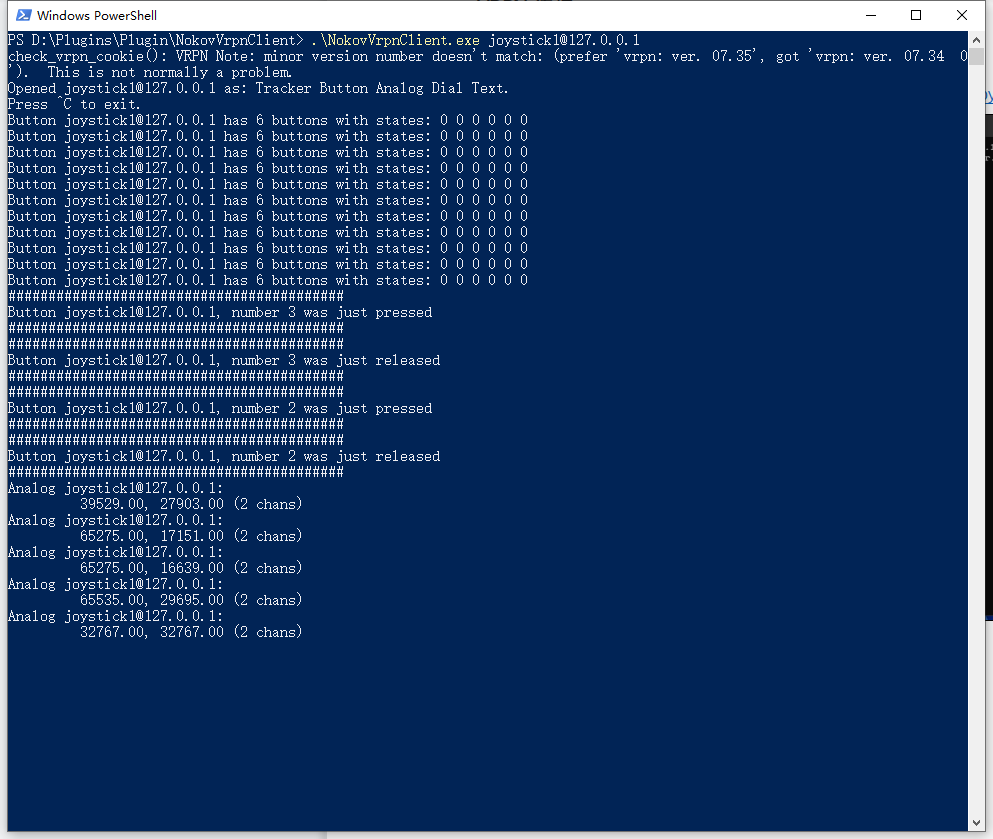
PowerShell
- If two joysticks are connected, change "joystick1" to "joystick2" in the terminal for the second joystick.
- Button Corresponding Relationship
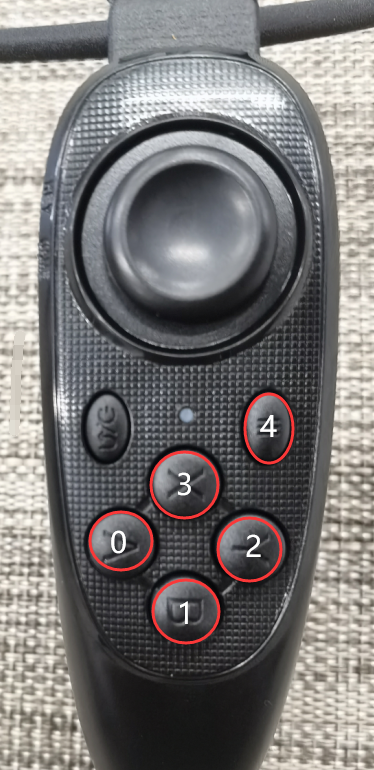
Button corresponding relationship
- Slider Coordinate Description: The coordinate range is 0-65535, with the upper left corner being the starting coordinates of x and y, respectively (0, 0).
Joystick Access to Unreal Engine
- Click on "Window > LiveLink", and add "LiveLinkVRPN Source" in the "LiveLink" window. Now, we add the topic for the joystick wheel:
- In "Connection Settings", do not modify the "IPAddress"; keep it as default.
- The frame rate in "Local Update Rate (Hz)" should be consistent with the frame rate set in the VR Tracker software.
- In "Device", enter the name of the joystick you need to connect. For example, if you are connecting the first joystick, enter "joystick1" here.
- "Subjectname" represents the subject name; choose "Analog" for "Type".
- After all the parameters are set, click "Add". Now, slide the joystick wheel; the wheel's theme will be successfully added below. Select the theme name of the wheel, click "View Options" on the right, choose "Show Frame Data" in the dropdown menu, "Expand Property Values", and the attribute values will change when you slide the joystick wheel.

LiveLinkVRPN Source Setting
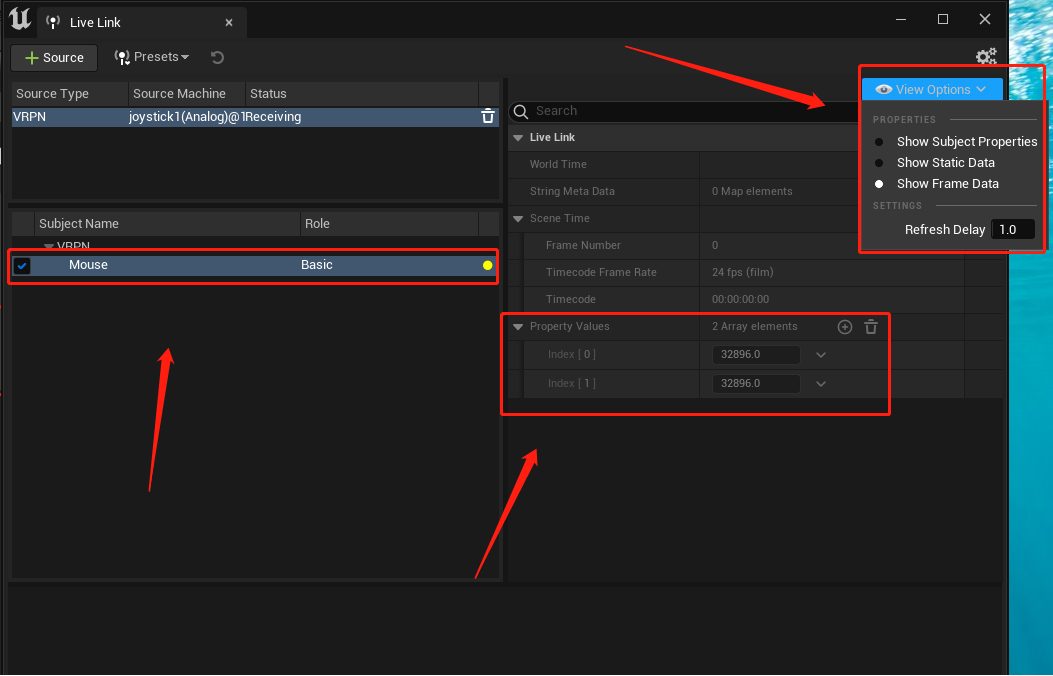
Property Values will be change when you slide the joystick wheel
- Adding Button (joystick key position) subject: Please keep the "IPAddress" as default, and the frame rate in "Local Update Rate in Hz" should be consistent with the frame rate set in the VR Tracker software. In "Device", enter the name of the joystick you need to connect. For instance, if you're connecting the first joystick, then enter "joystick1" here. "Subjectname" is for subject naming (please avoid duplicating the wheel topic name), and choose "Button" for "Type" . Click add, then press the joystick button, and the Button topic will be added to the topic list. Select the Button topic, expand the property values, and now when you press the corresponding key, "Property Value 0" will display the number of the key that's pressed. When the key is pressed, the number of "Property Values" will change from 0 to 1.
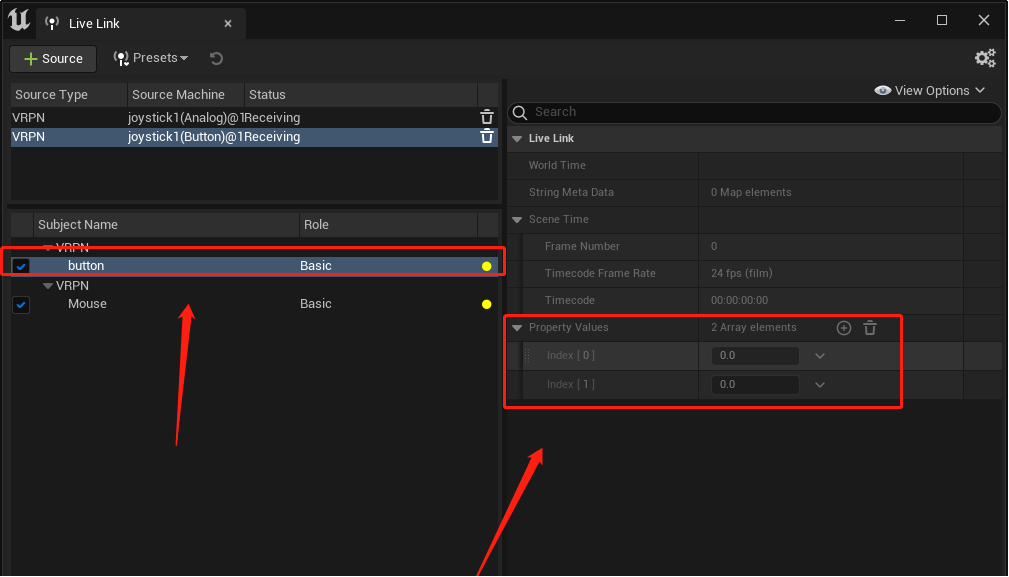
When the key is pressed Property Values change from 0 to 1
Create a Blueprint Class
- Right-click in the Content Browser to create a Blueprint class. Choose to create an "Actor" Blueprint class. Double-click on this "Actor" Blueprint, then add various nodes in "My Blueprint → Event Tick." Please note, after adding the two nodes of "Calculate Live Links, " select the corresponding Live Link subject names for the controller buttons and analog input respectively in the "Object" of this node."
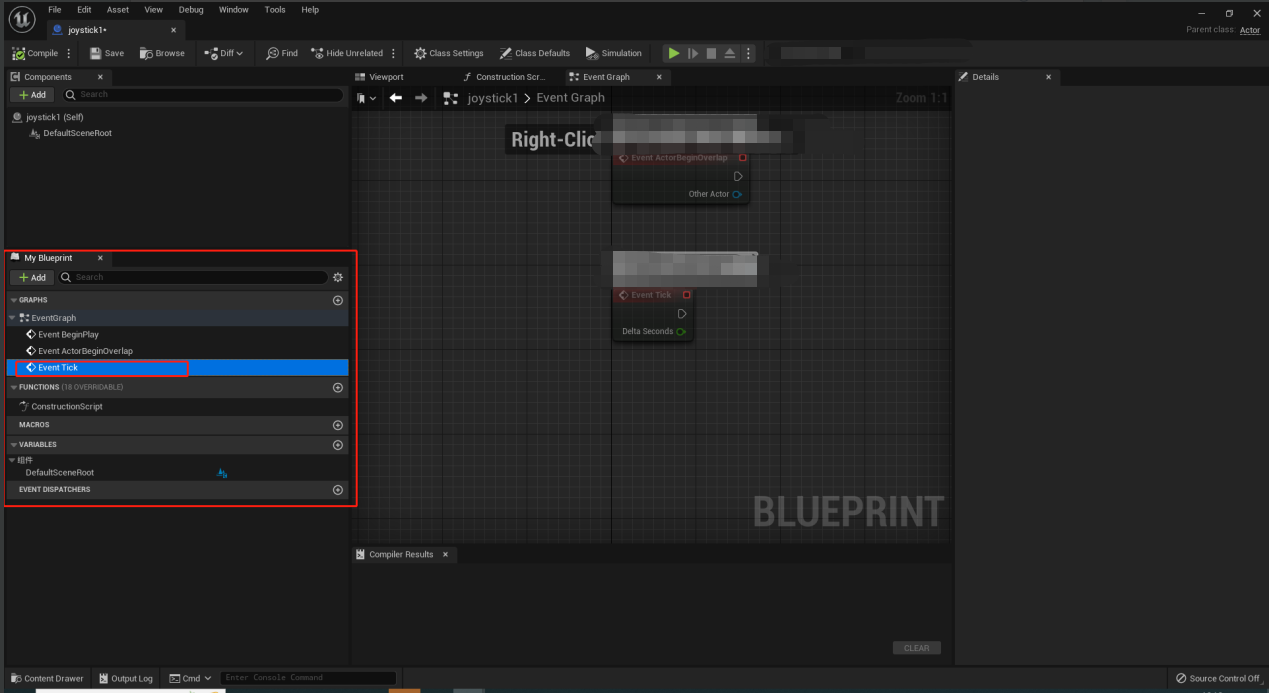
Event Tick
- After adding each node, click on "Compile" and "Save."
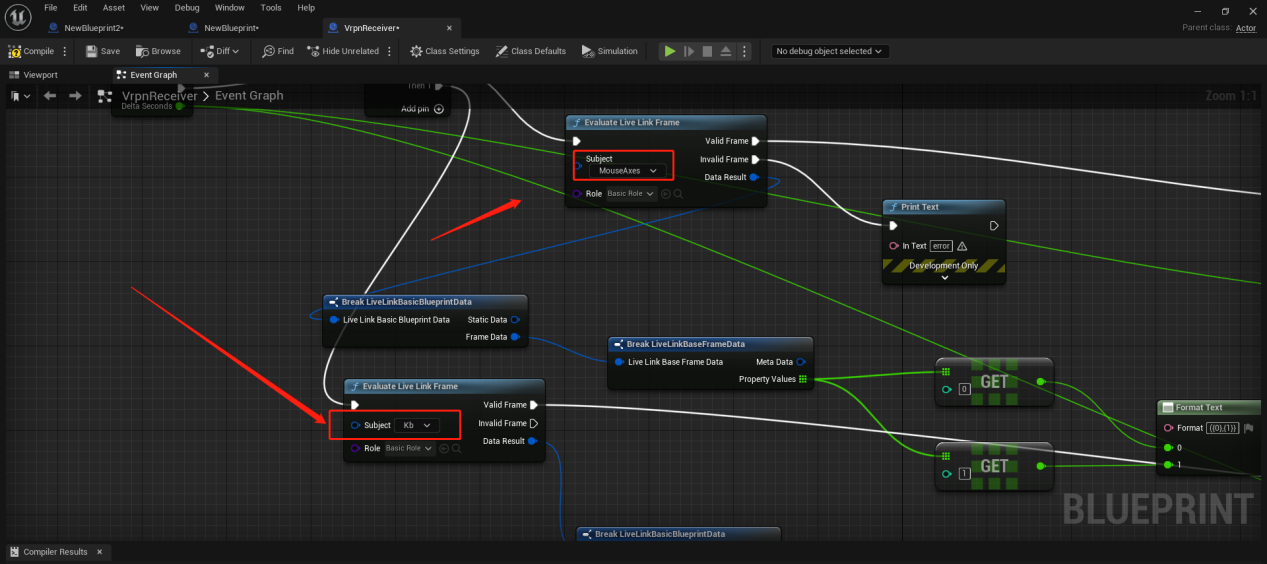
Using the Controller in the UE scene
- Drag the "Actor" Blueprint class from the Content Browser into the UE scene, then click on play. Now, by sliding the controller wheel or pressing different keys, the UE scene will display the button number, status, and coordinates.
.png)
Data in UE View
Xbox 360 Controller
- The Xbox 360 controller connects to a computer through a USB cable. Insert the USB cable of the Xbox 360 controller into the computer where the XINGYING software is installed. The button mapping for the Xbox 360 controller is as follows:
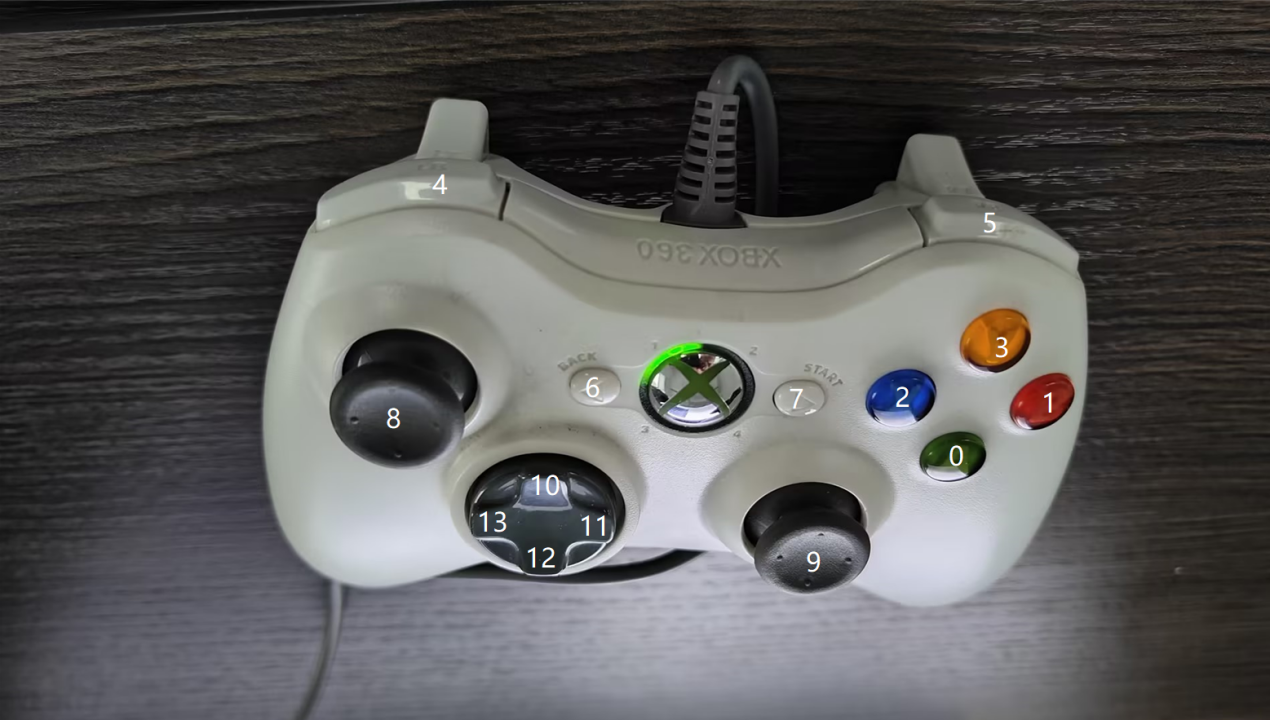
XBOX 360 controller
- The operation of the Xbox 360 controller is consistent with that of the MOCUTE‑052F controller. Please refer to the preceding text for detailed operating instructions.