MotionBuilder Plugin
Plugin Installation
- Nokov-MobuPlugin supports MotionBuilder 2018-2027 versions. Double-click "Nokov-MobuPlugin_XXX.exe" and follow the prompts to complete the installation. Keep the default installation directory for the plugin and do not modify it.
Asset Creation
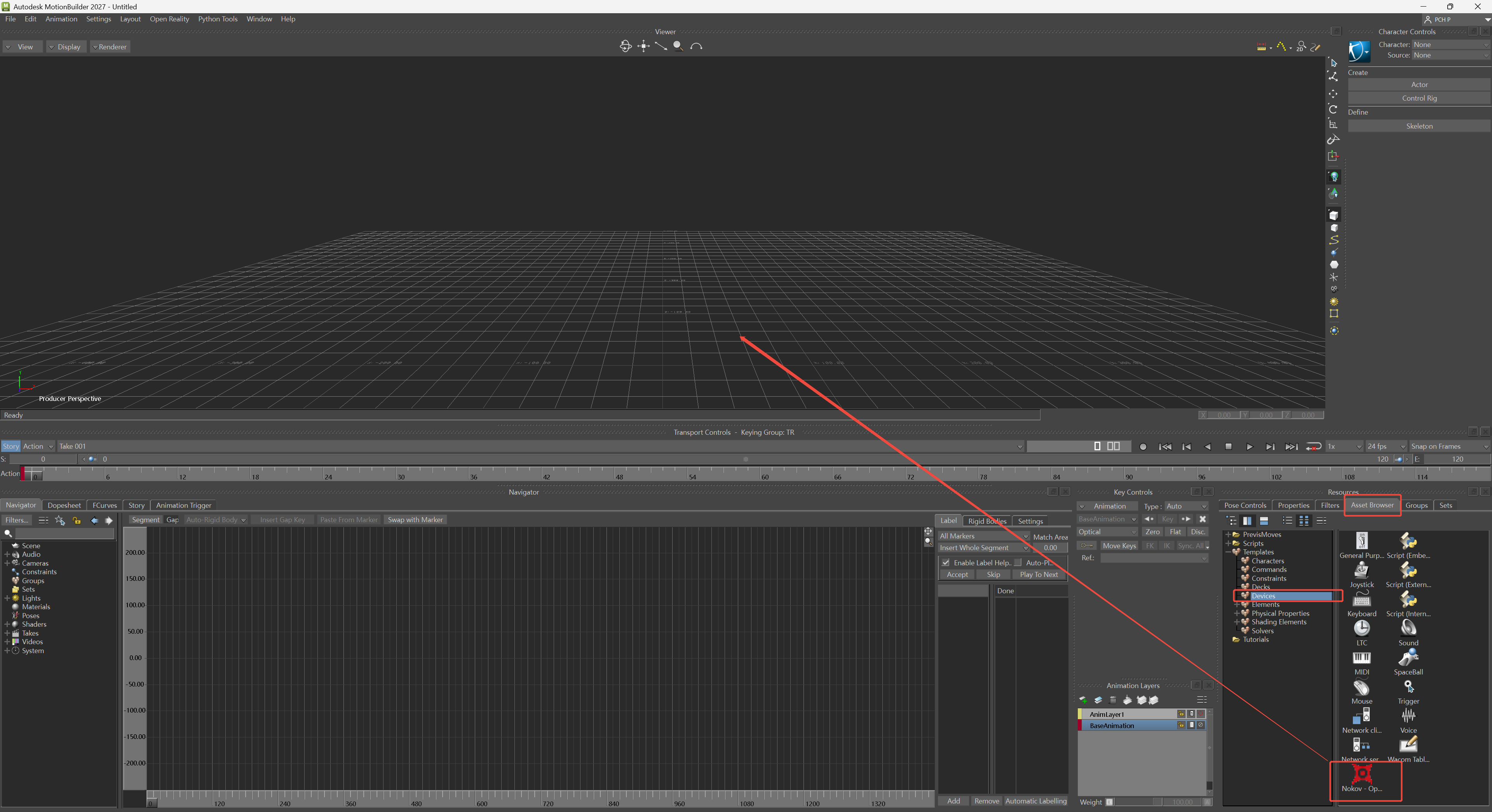
- Click "Resources—Asset Browser—Devices", find "Nokov-Optical" in it, and drag it into the view.
-
Set the broadcast IP address in the XINGYING software, enable the SDK stream, and play the data.
-
Expand "I/O Devices" under the "Navigator" panel, double-click "I/O Nokov - Optical Device" to bring up the Nokov plugin panel, and set the Local Address to match the SDK IP address in XINGYING. For cross-host connections, fill in the SDK IP address of XINGYING on the other host within the same network segment in the "Server Address" field below.
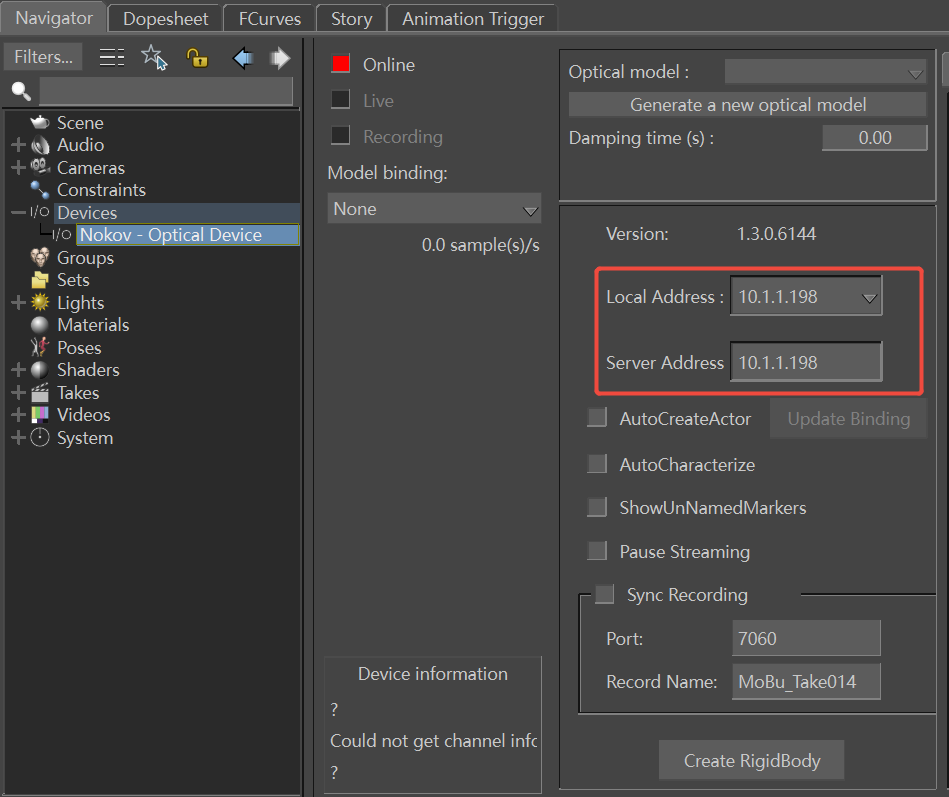
- Click the Online button to put it into Live status
Create Marker
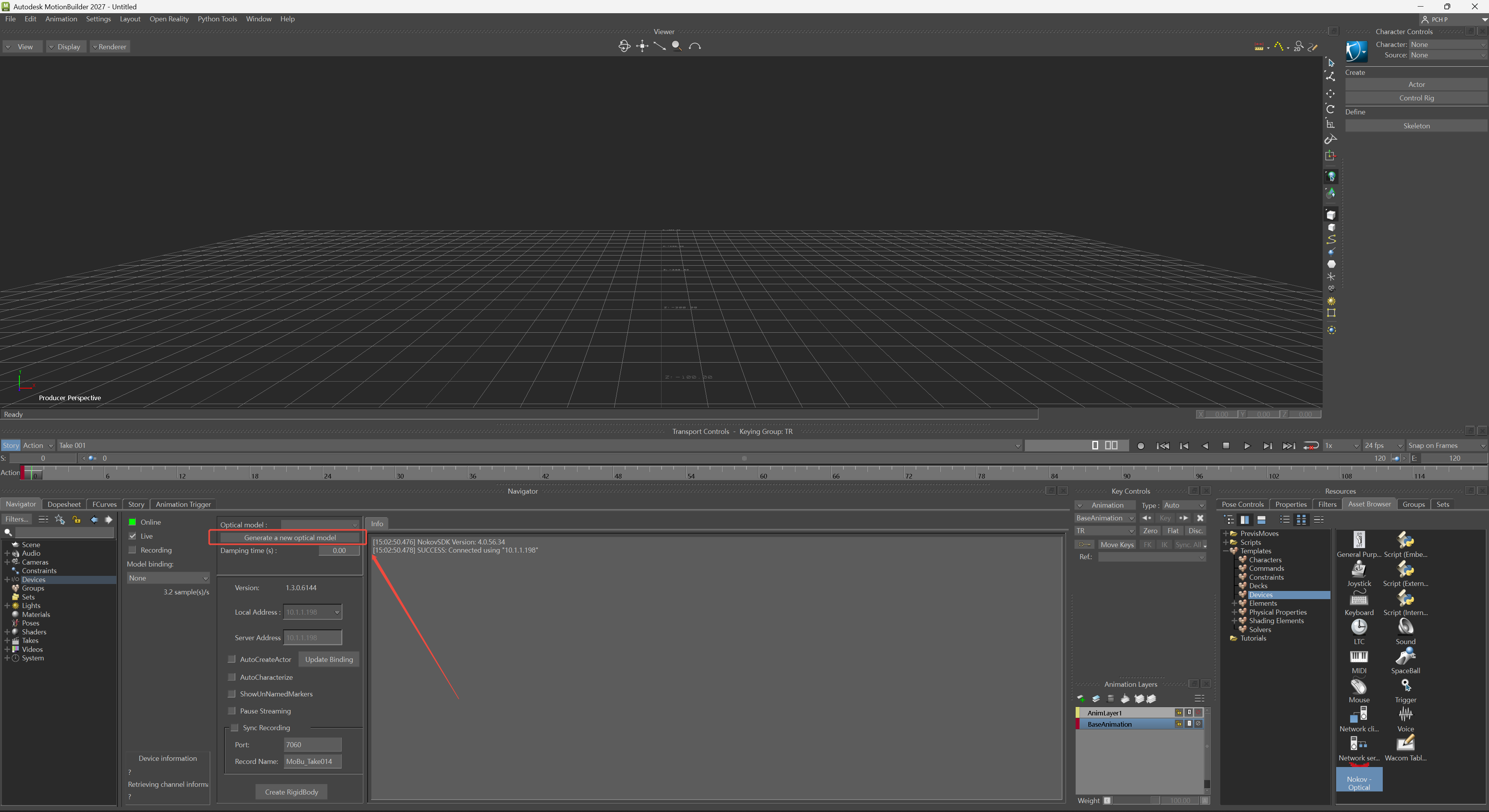
- Click "Generate a new optical model", and the Marker points of the motion capture asset will be created and displayed in the MotionBuilder view.
Create Skeleton
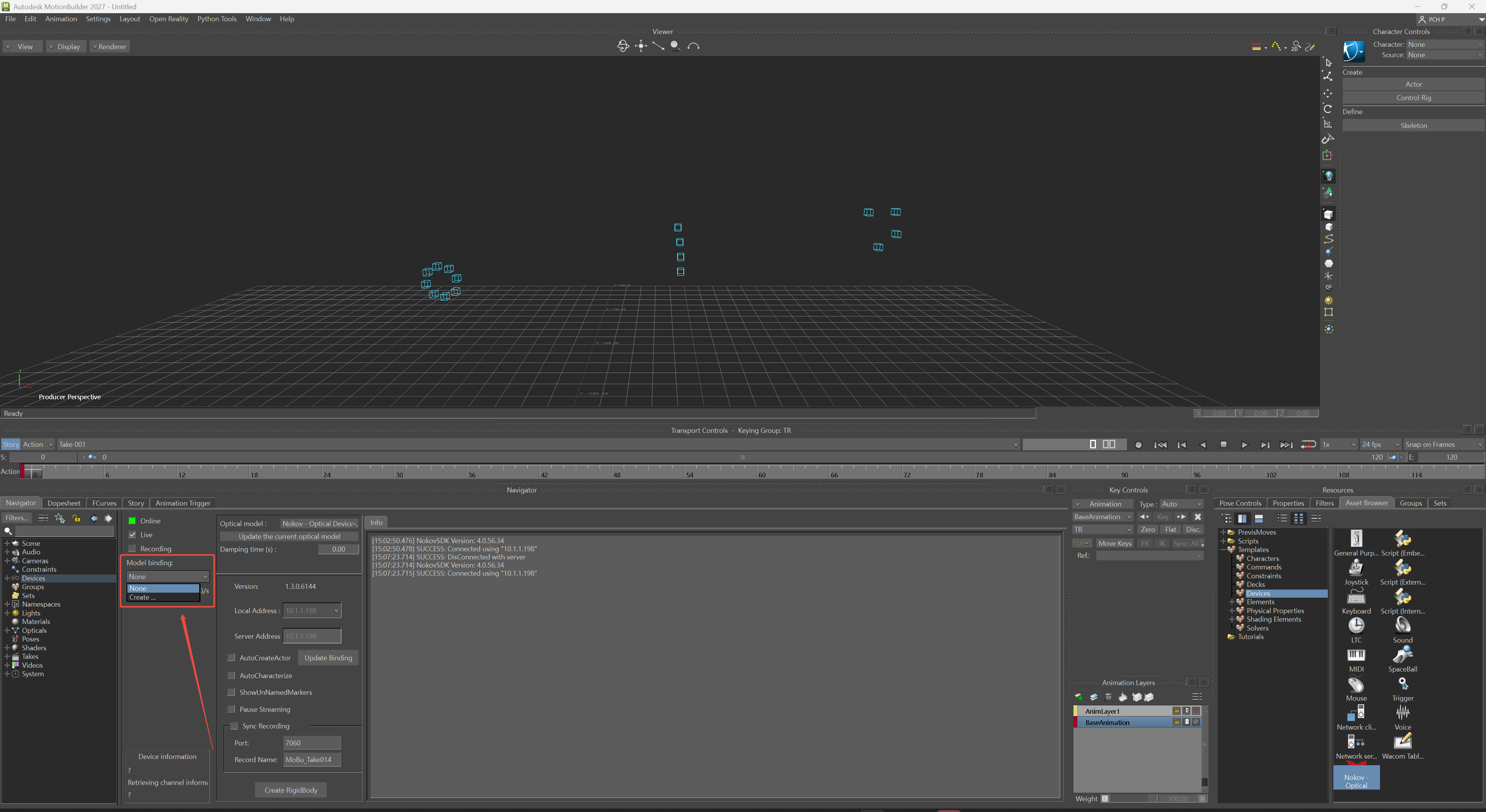
- Click "Model binding--Create", and the skeleton or rigid body asset of the motion capture asset will be created and displayed in the MotionBuilder view.
Role-based Profiling and Redirection
Role-based design
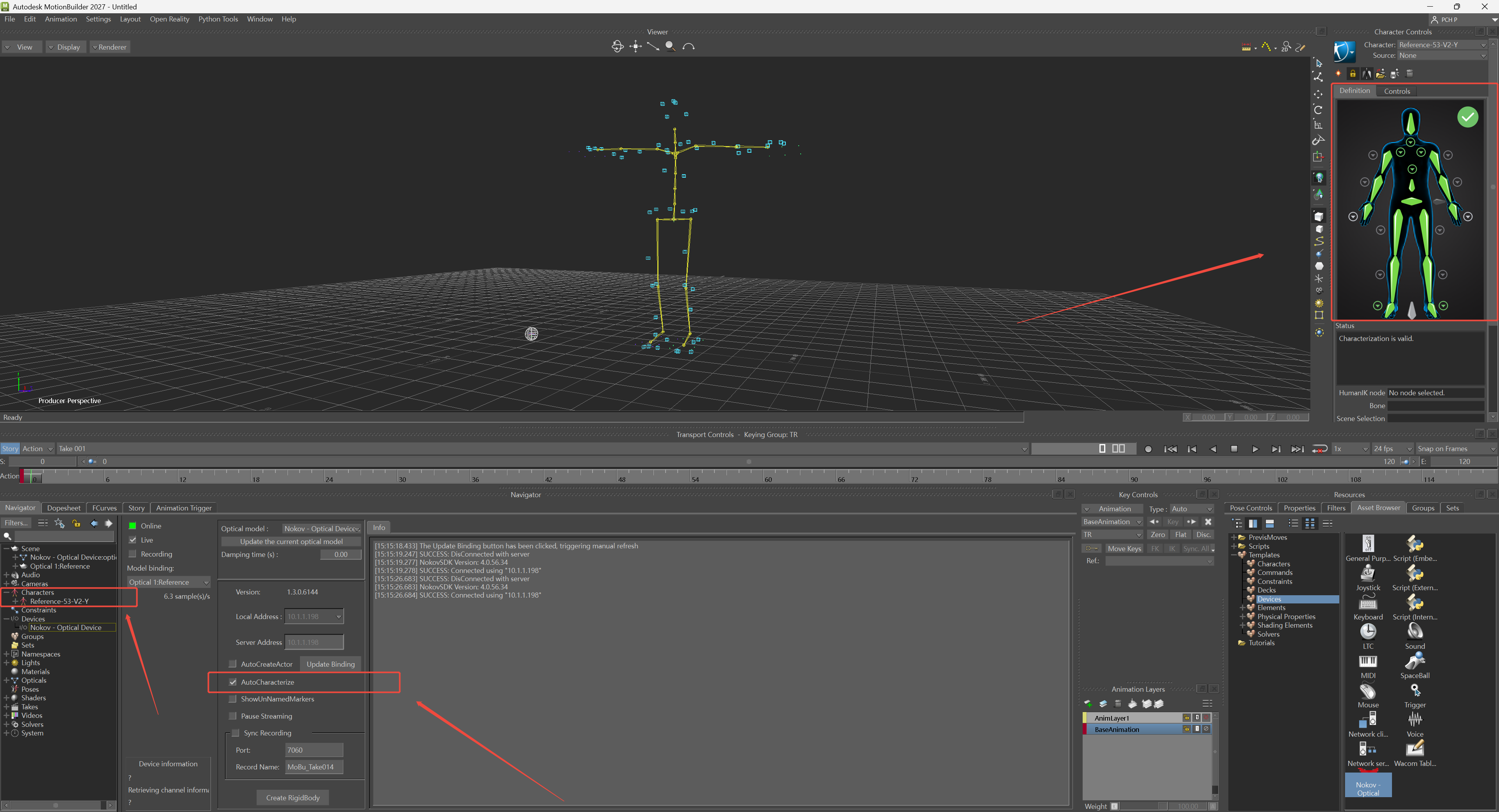
- After creating Model Binding and checking AutoCharacterize, automatic characterization will complete. Unchecking AutoCharacterize will clear Characters.
Redirect
-
Characterization is an important step for retargeting using MotionBuilder HIK. Characters generated based on characterization can be retargeted after external models are characterized.
-
When importing an external model, the initial pose needs to be a T-pose, or the model pose should be adjusted to a T-pose after import.
-
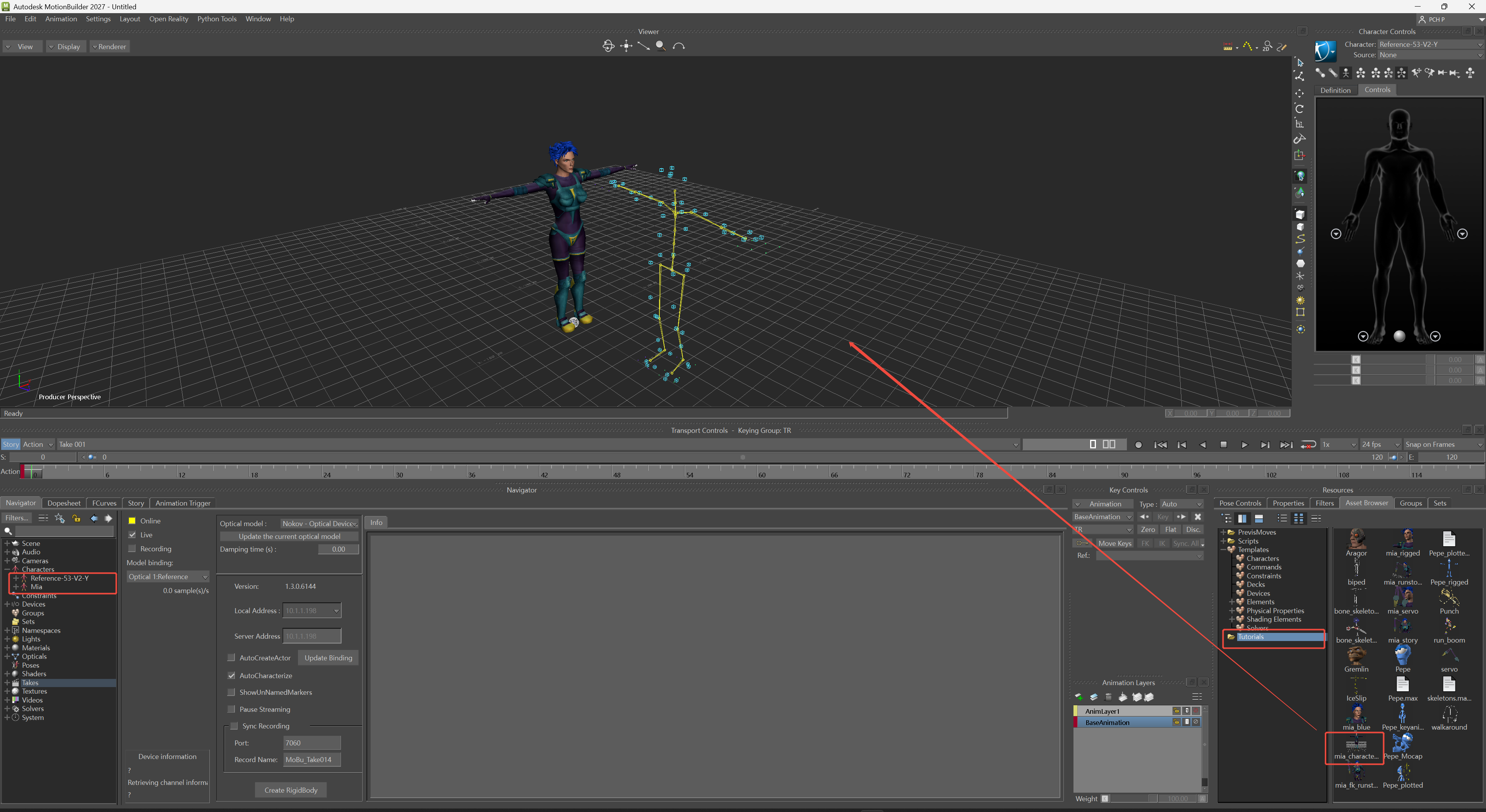
Take Motion Builder FBX as an example here. Click Tutorials in the lower right corner, drag mia_blue into the scene, and click FBX Merge->No Animation.
-
After importing the model, skeletal binding is required. Once the key bones are bound, characterization is performed. Here, the built-in model of Motion Builder is used, which has already been characterized.
-
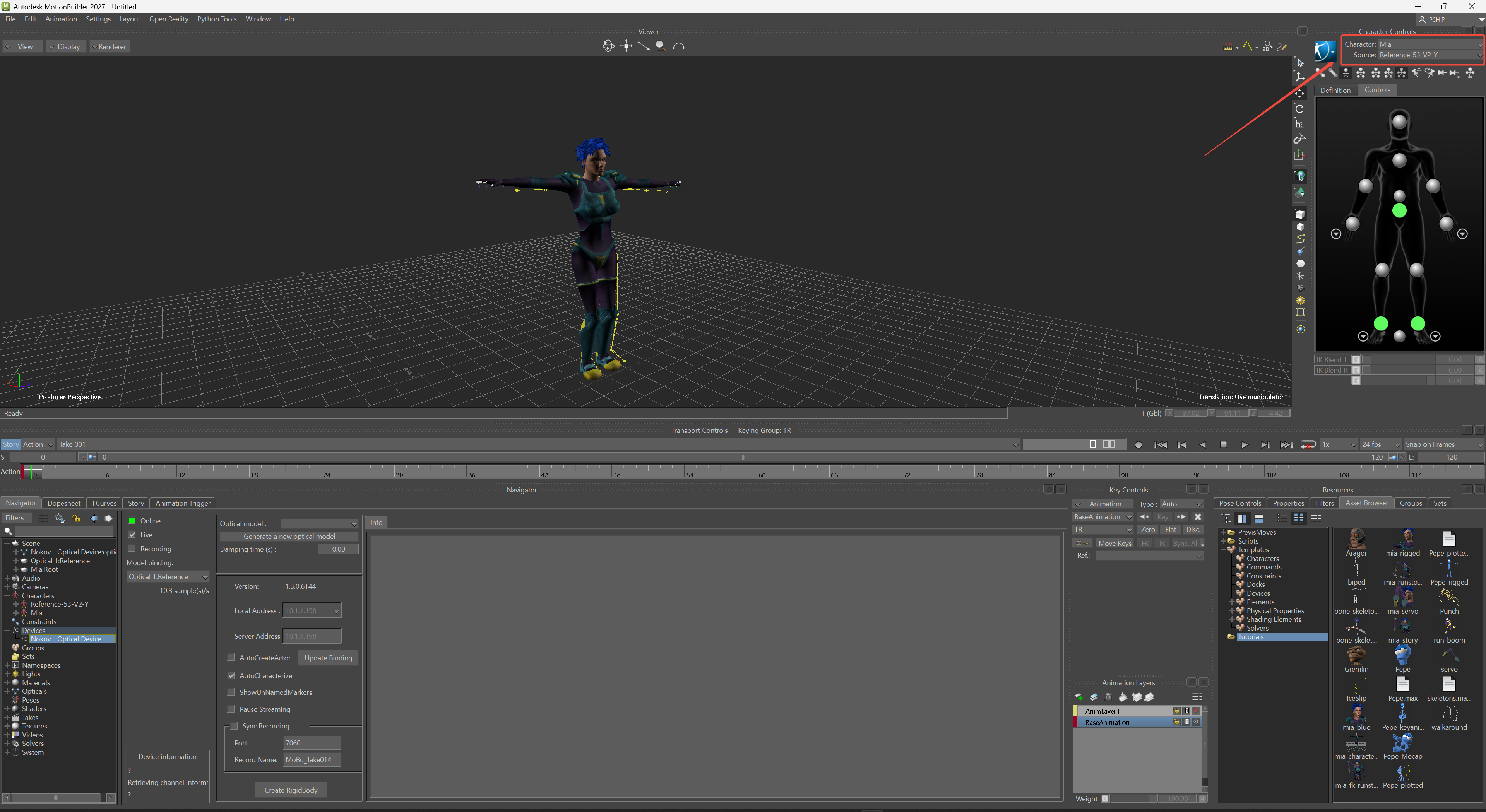
Click Character in the upper right corner, select the imported model "Mia", choose the rigged human skeleton for Source, and Mia can use this rigged skeleton for retargeting.
Create Actor and Markerset
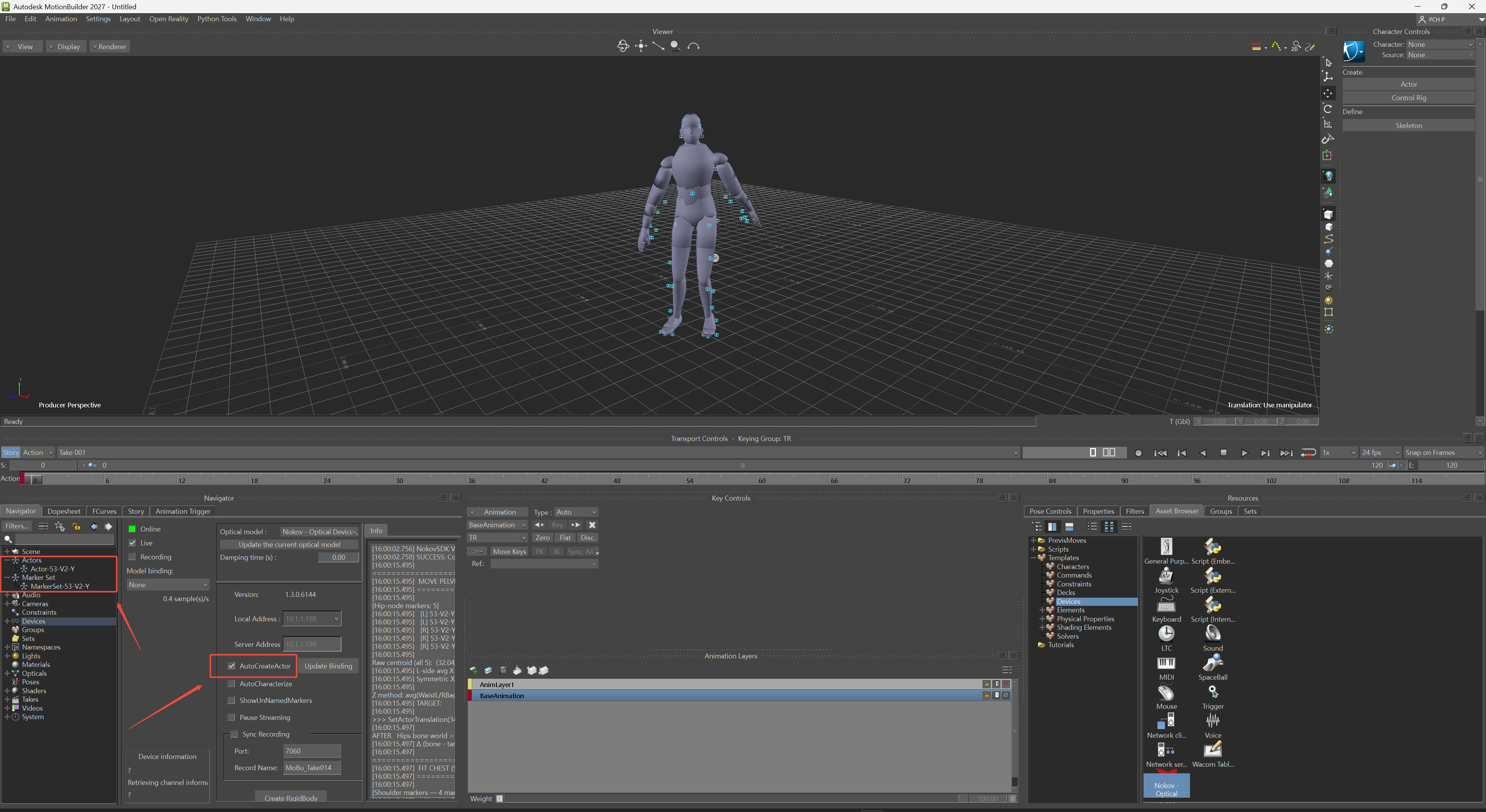
- Click Online to connect, click "Generate a new Optical model", then click "AutoCreateActor" to automatically create an Actor and bind it to the MarkerSet. Unchecking it will unlink the Actor and MarkerSet.
- The MarkerSet automatically created by the Actor only corresponds to the markers of the 53-point human template and does not support other human templates.
Actor Optimization
-
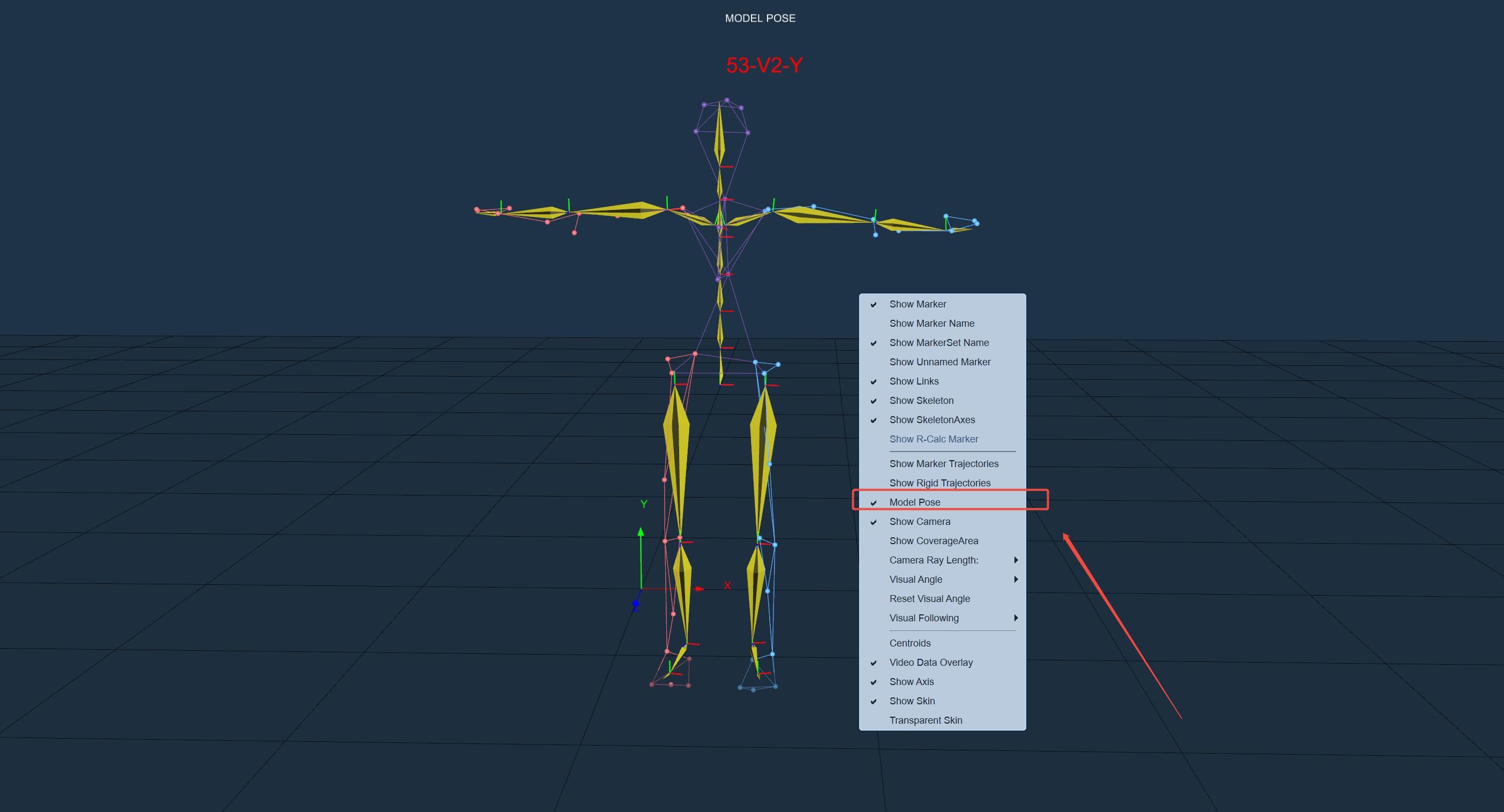
Since the Actor is driven by binding Markers, the Model Pose in XINGYING is used as its Zero Position. The Marker positions under Model Pose generally do not match the bone positions with zero rotation, which may lead to solving abnormalities in Actor driving. Fine-tuning can be performed in the following ways.
-
First, switch to Model Pose in XINGYING. Model Pose is unavailable in real-time mode. The model can adjust the standing posture to get closer to the T Pose before reconstructing the human body, or record human body data and switch to post-processing mode for adjustment.
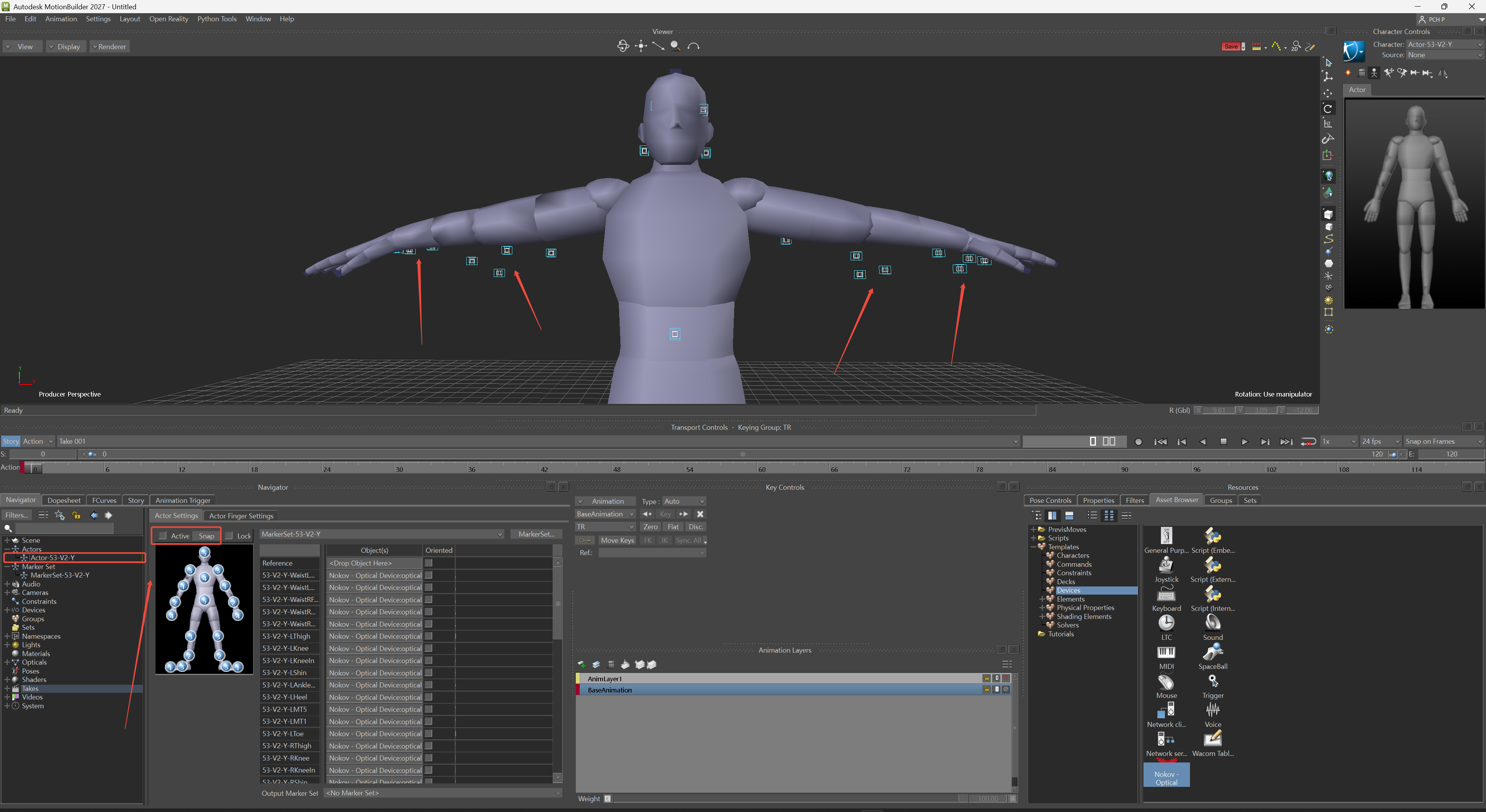
- In the Actor asset, locate the Actor corresponding to the MarkerSet, double-click to open the Actor property panel, uncheck Active. Then fine-tune the Actor's bone rotation and offset in the MotionBuilder viewport to align it as closely as possible with the marker positions on the human body model, and click Snap.
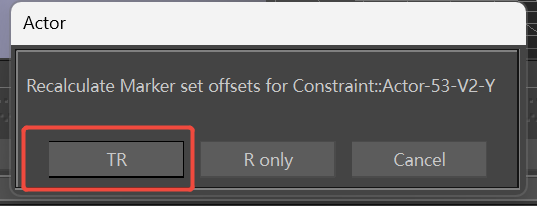
- Click "TR".
- Exit Model Pose mode in XINGYING and restore the data stream. At this point, you can observe that the solving effect of the Actor has been improved.
Data Refresh
- After assets are changed in XINGYING, data needs to be refreshed and assets recreated in Motion Builder.
- Modifying asset names, adding, deleting or editing assets in XINGYING will automatically trigger the data refresh mechanism.
- Manually click the pause button and then the play button to enable the "Update Binding" button. Clicking the "Update Binding" button triggers the data refresh mechanism.
- After switching data in post-processing mode, click the "Update Binding" button to refresh data.
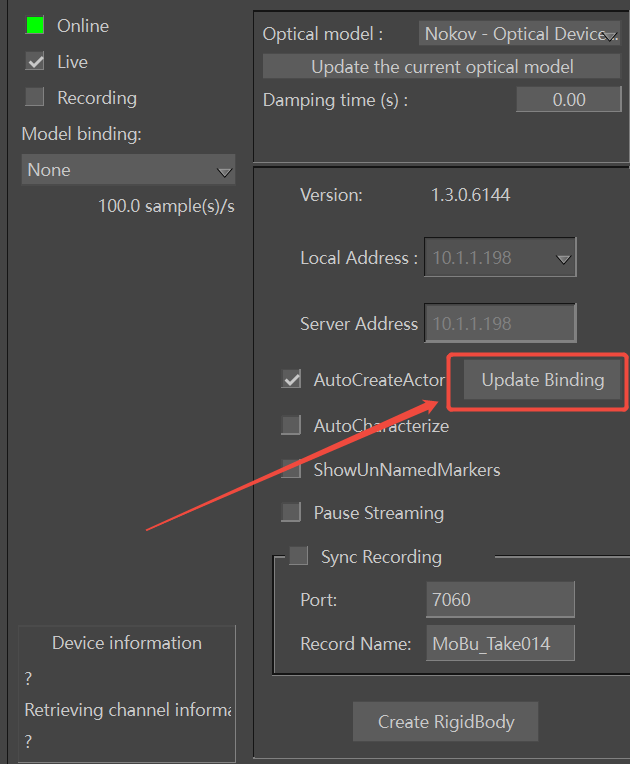
Skeleton Transform
- After selecting the root joint of the skeleton asset, you can adjust its transform properties in the right panel. You can scale, translate, and rotate the entire human skeleton, interact by dragging directly in the scene, or modify values in the input boxes below.
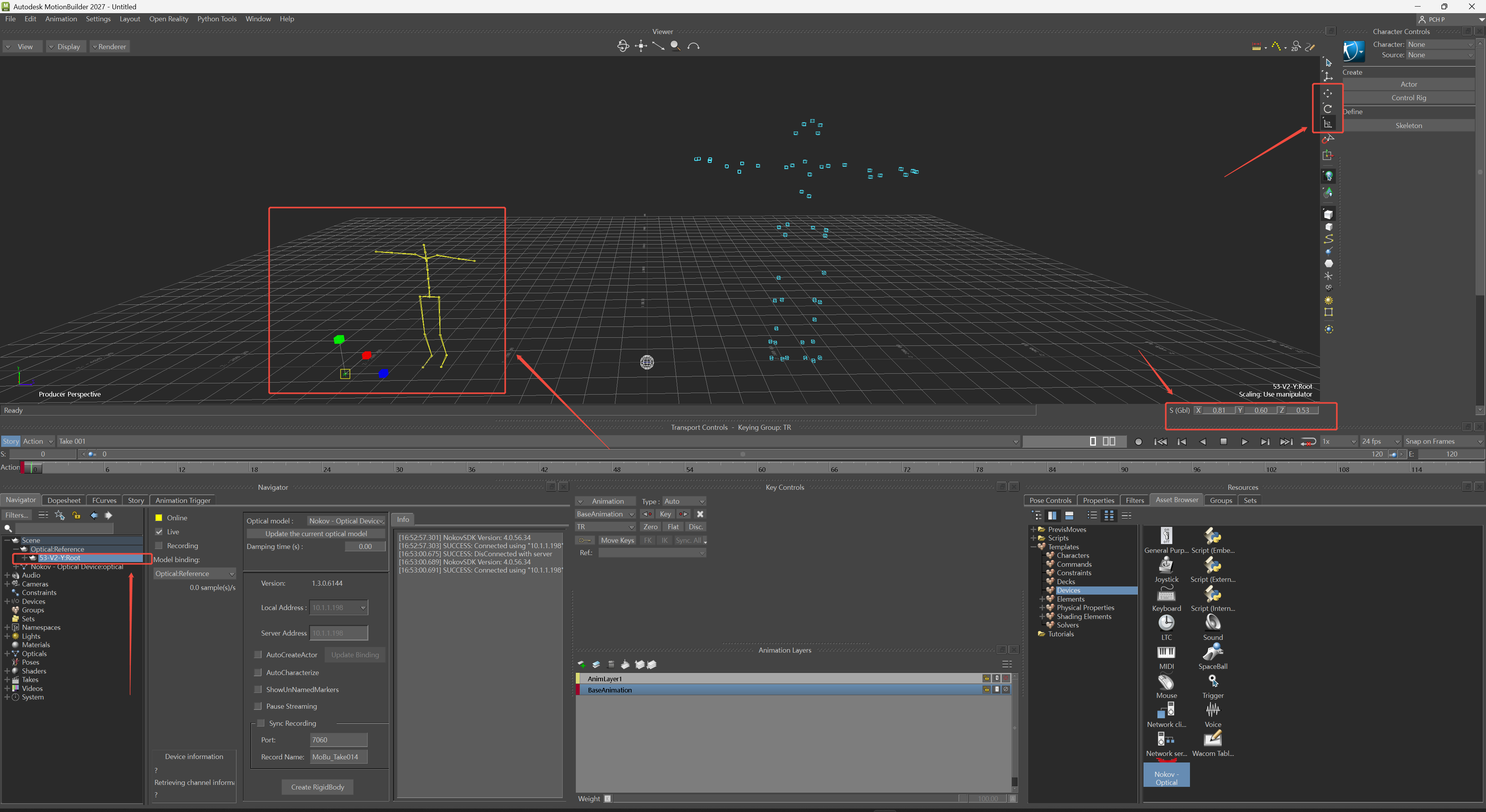
Show Unnamed Points
- Unnamed point assets will not be created by default. To create them, first check the "ShowUnNamedMarkers" option, and then click the "Update Binding" button. After unchecking "ShowUnNamedMarkers", unnamed points will not be displayed in the MotionBuilder viewport. Click the "Update Binding" button to clean up unnamed point assets.
- After unnamed point assets are created, their visibility can be toggled using the "ShowUnNamedMarkers" checkbox.
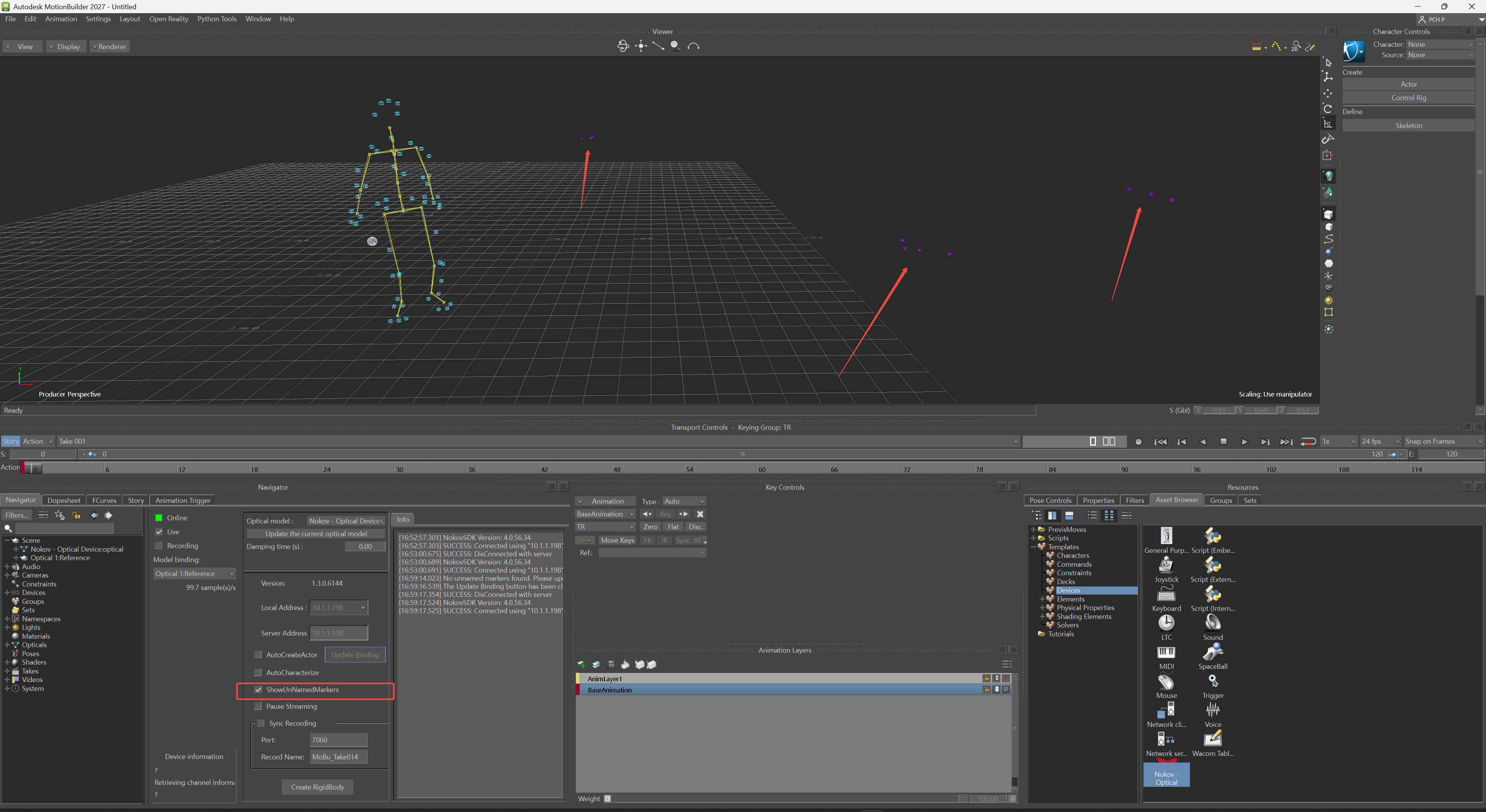
Pause Streaming
- This button can be used to pause animation data of assets in the scene for the convenience of animation creators.
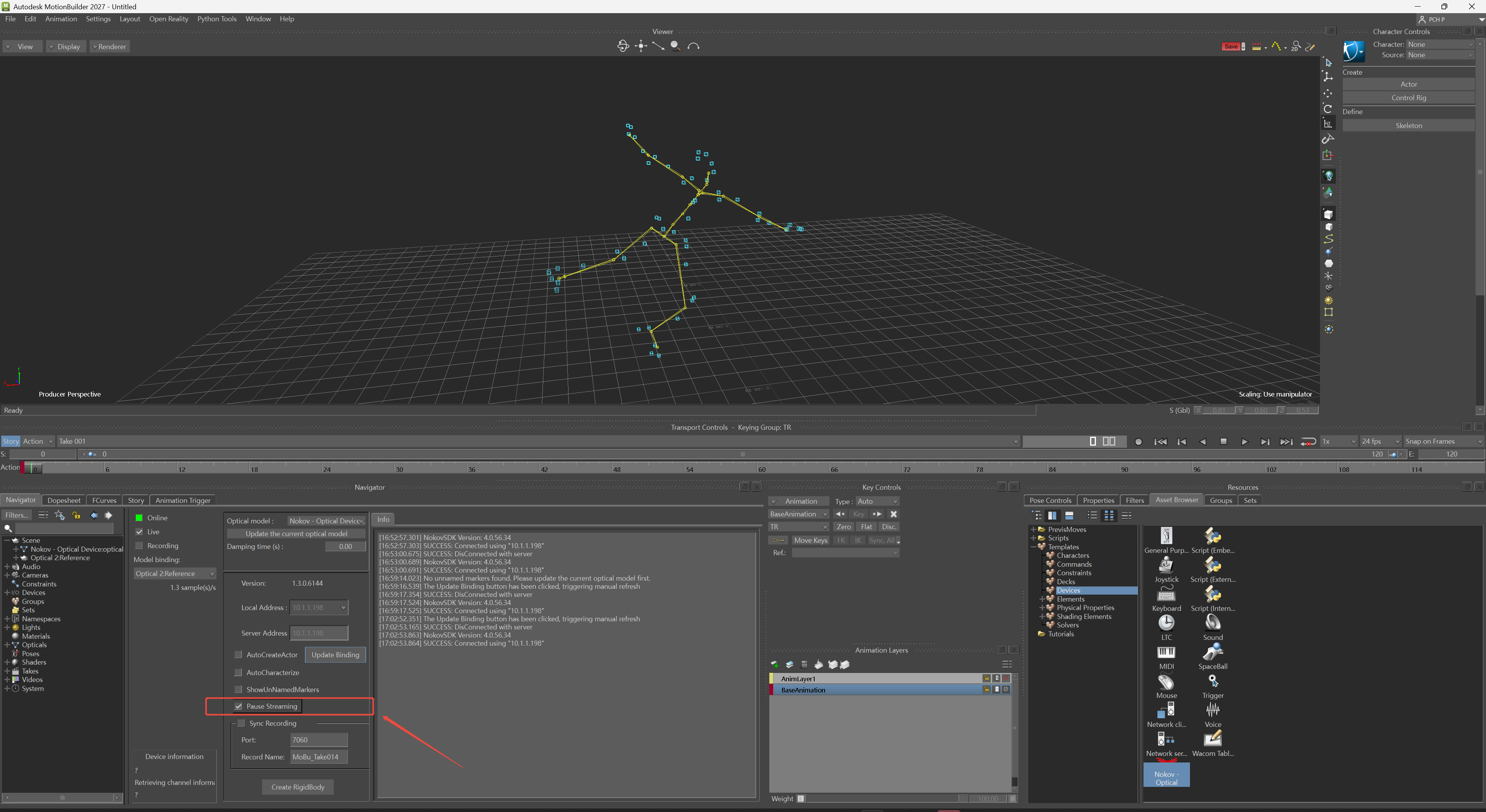
Synchronous Recording
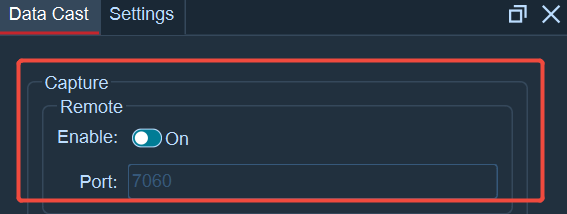
- Set the port for remote capture in the data broadcast panel of XINGYING, and enable the remote capture function.
-
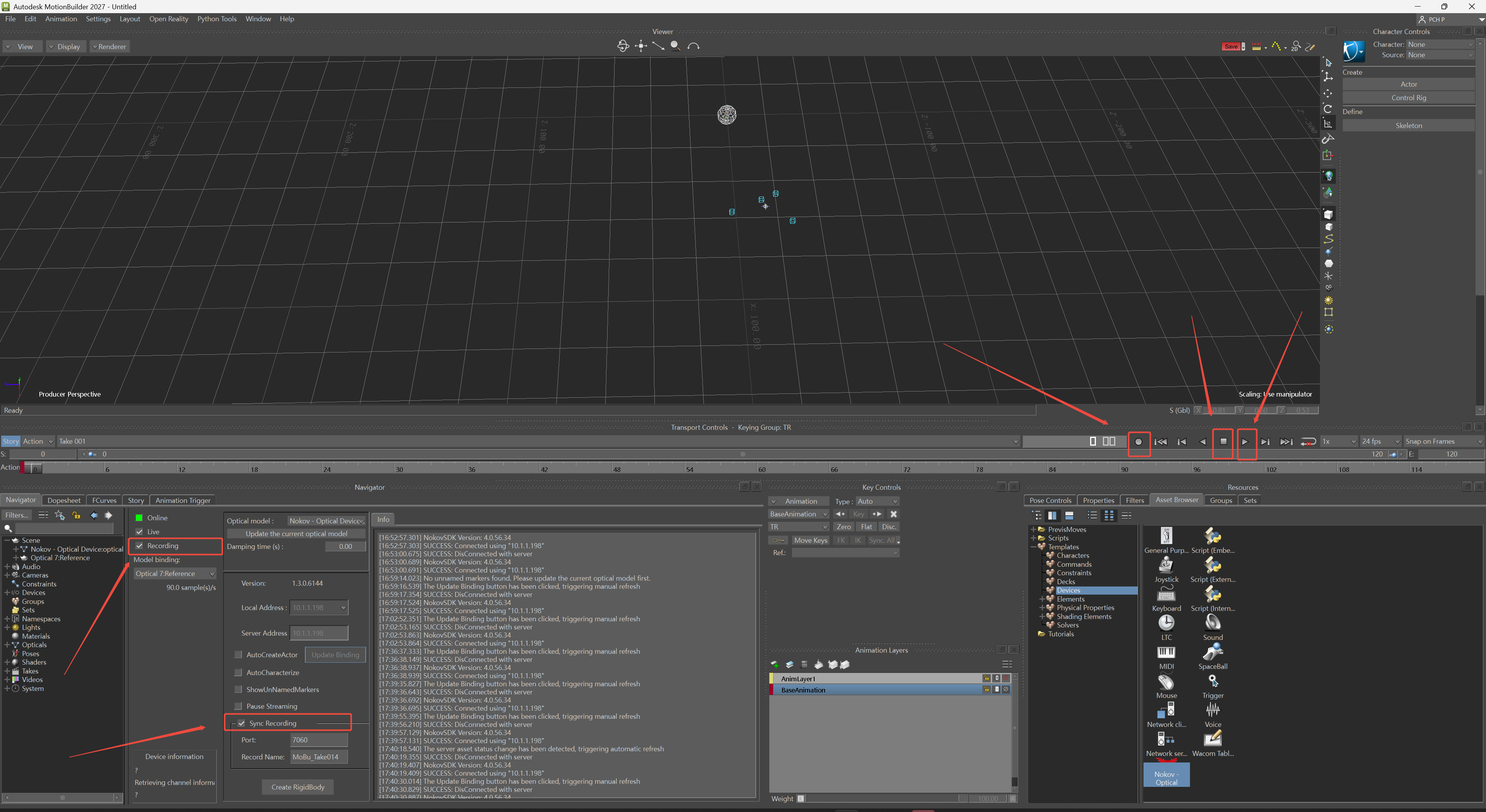
Open the Nokov plugin panel in MotionBuilder. Enter the port for synchronous recording in the "Port" input box, which must match the port set in XINGYING remote capture. Enter the name of the recording file in the "Record Name" input box (Chinese names are not allowed). You may also use the default name for synchronous recording.
-
Check "Sync Recording" to enable the synchronous recording function.
-
When using the synchronous recording function, confirm that XINGYING is in real-time mode.
-
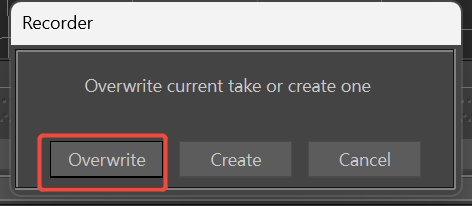
Check the "Recording" option on the Nokov plugin panel to activate MotionBuilder's recording function. Click the circular button to activate recording status, then click "Overwrite". After the circular button turns red, click the triangular start recording button. MotionBuilder and XINGYING will start recording data simultaneously.
-
Click the square button in the middle to stop synchronous recording.
Rigid Body Creation
-
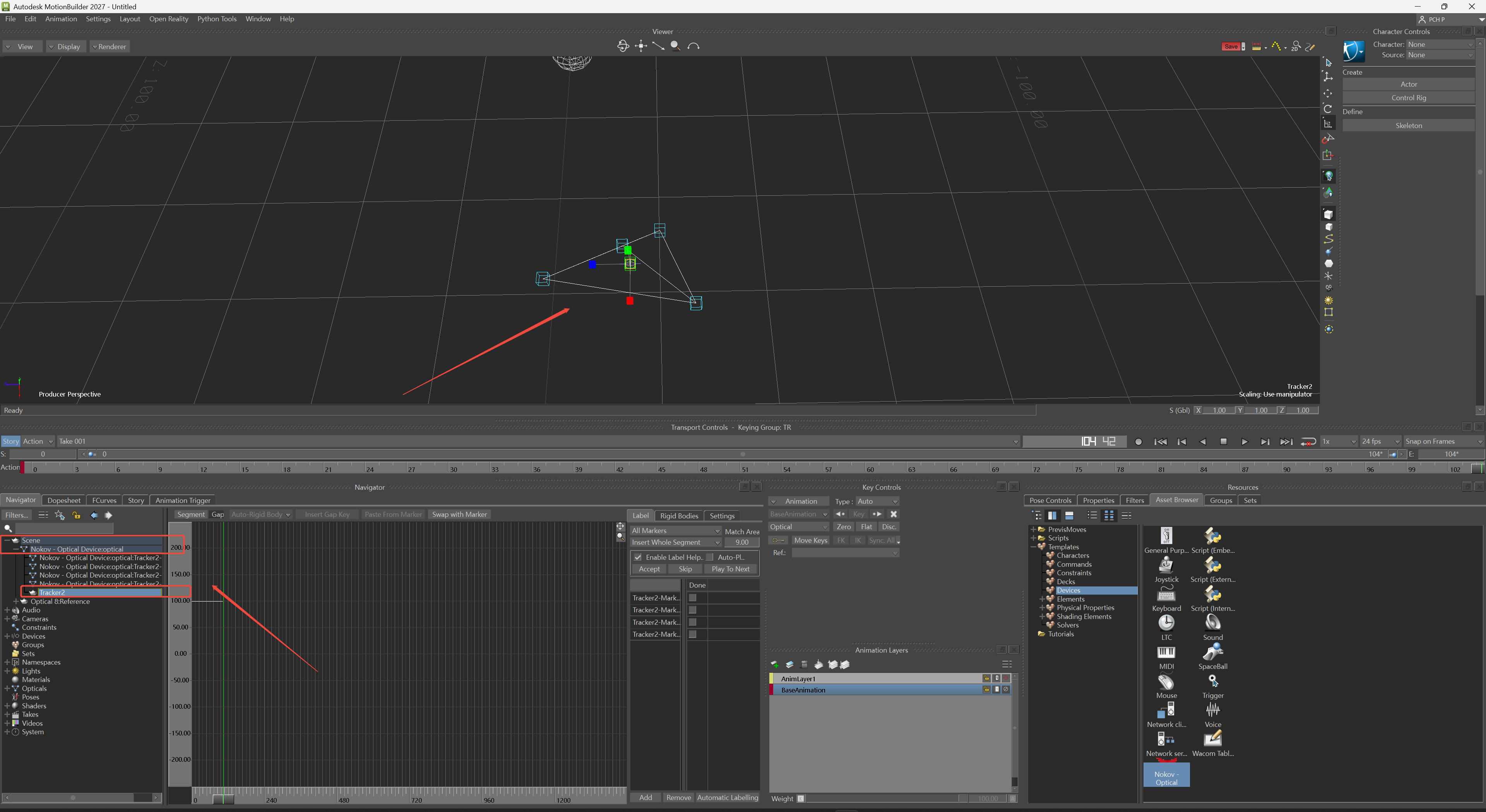
Create a rigid body in XINGYING real-time mode or load rigid body data in post-processing mode. Open MotionBuilder software, drag the XINGYING plugin into the scene, and follow the instructions for "Asset Creation" described above.
-
Click "Create RigidBody" on the Nokov plugin panel. A prompt indicating successful rigid body creation will pop up, and the bones of the rigid body will be generated in the MotionBuilder scene.
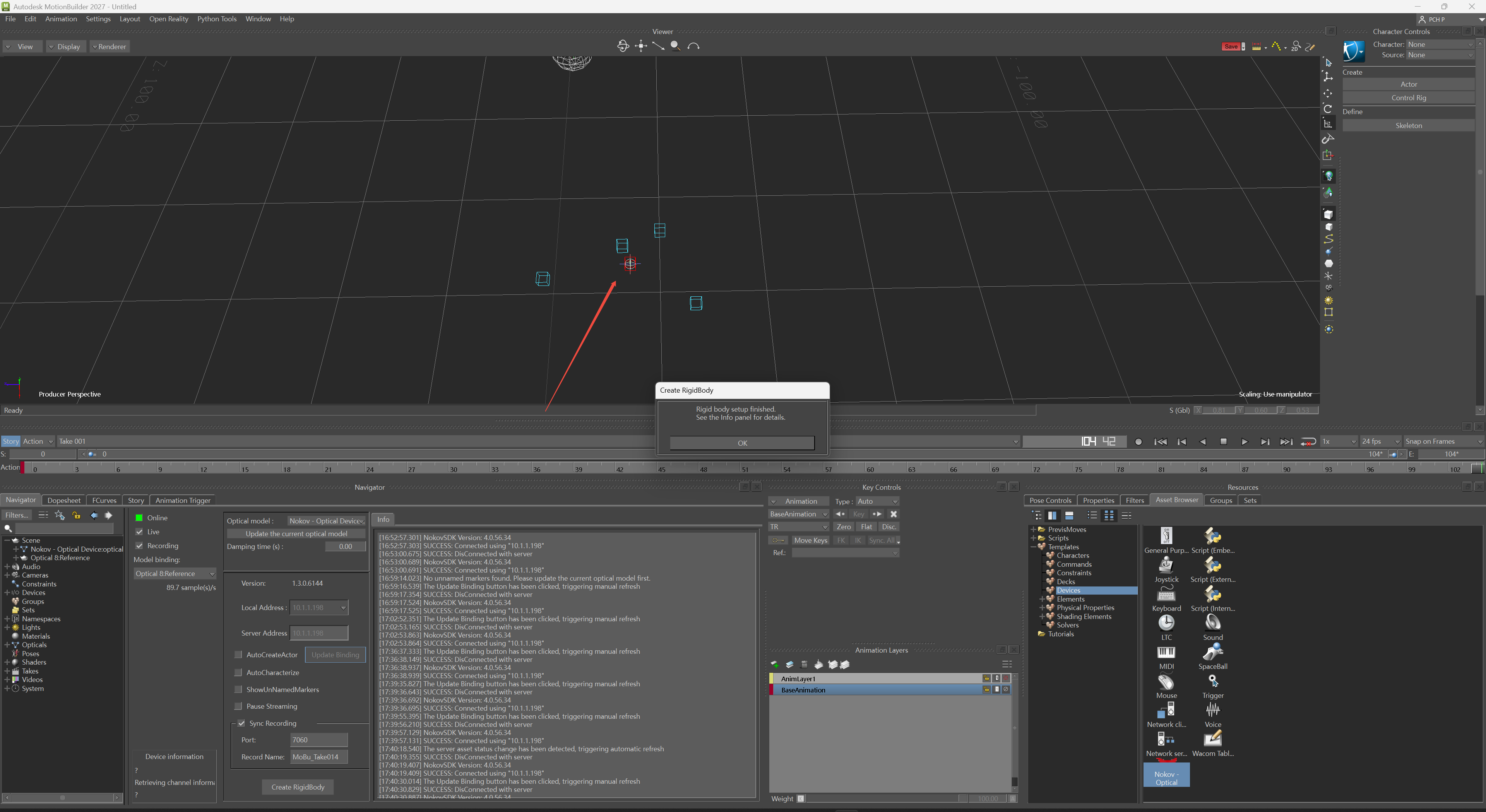
- On the "Navigator" tab, expand "Scene". Within "Scene", expand Nokov-Optical Device:Optical and scroll to the bottom. You can see the name of the created rigid body, which matches the rigid body name in XINGYING. Double-click the rigid body name; the rigid body in the scene will display connecting lines, and the selected rigid body bones will also be highlighted, changing from red to green.