Sync Box Settings
Sync Box Introduction
The Sync Unit is used to achieve synchronization between NOKOV optical motion capture cameras and external devices. Its sync input supports both professional video Genlock synchronization signals and standard TTL-level sync signals. The sync output function can output multiple TTL sync signals to trigger and synchronize multiple external devices.
.png)
On the front panel, the Sync Unit includes 5 groups of BNC interfaces. The main functions and features of these interfaces are as follows:
A: 5V General TTL Sync Output Interface This includes four BNC connectors, each capable of independently outputting TTL sync signals (digital signals at 5V level) for triggering and synchronizing multiple external devices. These sync output interfaces must be used in conjunction with a sync input interface.
B: 3.3V General TTL Sync Output Interface This also includes four BNC connectors, each capable of independently outputting TTL sync signals (digital signals at 3.3V level) for triggering and synchronizing multiple external devices. These sync output interfaces must be used with a sync input interface.
C: General TTL Sync Input Interface A BNC interface that supports TTL digital signals, with two inputs at 5V level and two at 3.3V level. It is used to receive TTL sync trigger signals from other devices. This input is linked in hardware to eight sync output interfaces.
D: Genlock Sync Input Interface A BNC interface with 75Ω impedance, supporting SD (Standard Definition) Black Burst or HD (High Definition) Tri-Level analog signals. It is used to synchronize and lock NOKOV optical motion capture cameras to an external video source.
E: Remote Start Input Interface Used for remote control to start playback; feature under development.
F: Trigger Sync Input/Output Interface A BNC interface with TTL digital signals at 5V level. External devices can use this interface to trigger and synchronize NOKOV optical motion capture cameras.
G: Isolated Sync Input Interface Used when the sync source voltage is higher than the standard logic level of 5.0V or when different reference levels are involved.
H: Remote Stop Input Interface Used for remote control to stop or pause playback; feature under development.
I: ExtIO Input Interface ExtIO expansion port; feature under development.
J: VESA In / VESA Out Interface VESA video sync input/output interface; feature under development.
K: POE Connection Port When the Sync Unit needs to synchronize with the camera, connect one end of the Ethernet cable to the POE port of the Sync Unit and the other end to the switch connected to the 201 camera.
L: 12V Power Interface and Power Indicator Light The indicator light turns on when POE is connected or a 12V power source is plugged in.
Note:The Sync Unit cannot respond to multiple sync input signals simultaneously. Only one sync input interface should be used at a time.
Operating Instructions for the Sync Unit
The usage of the Sync Unit is as follows:
- To enable the Genlock synchronization function: Use a BNC cable to connect the Genlock output port of an external synchronization source (such as a Genlock signal generator or professional camera) to the Genlock sync input port of the sync box; then connect the devices to be synchronized to the TTL output port.
.png)
-
When the Trigger is required to activate the synchronization function, connect the device to the Trigger synchronization input port of the sync box via a BNC cable, then link the device to be synchronized to the TTL output port.
-
Connect the synchronization box to the switch with an Ethernet cable. The switch supplies operating power to the synchronization box via PoE power supply.
-
At this point, the synchronization box can realize triggering and synchronization functions between NOKOV optical motion capture lenses and external devices as required.
Operation of the Sync Unit with Software
Taking the Bertec force plate and time code as an example:
- First, connect the force plate device to the Sync Unit. Then connect one end of the network cable to the switch and the other end to the POE port on the Sync Unit.
.png)
- Open the software and connect the cameras. After connecting, the software will display the number of cameras and Sync Unit devices. Click Settings and select Sync Unit Settings. In the Information section, choose the Sync Unit device, then check the option for Internal Clock Input Source Setting. Select Input Mode 2 and set the output to TTL Out 1 Output Mode 1 (the first option in the drop-down list). Click Play and configure the force plate to apply force.
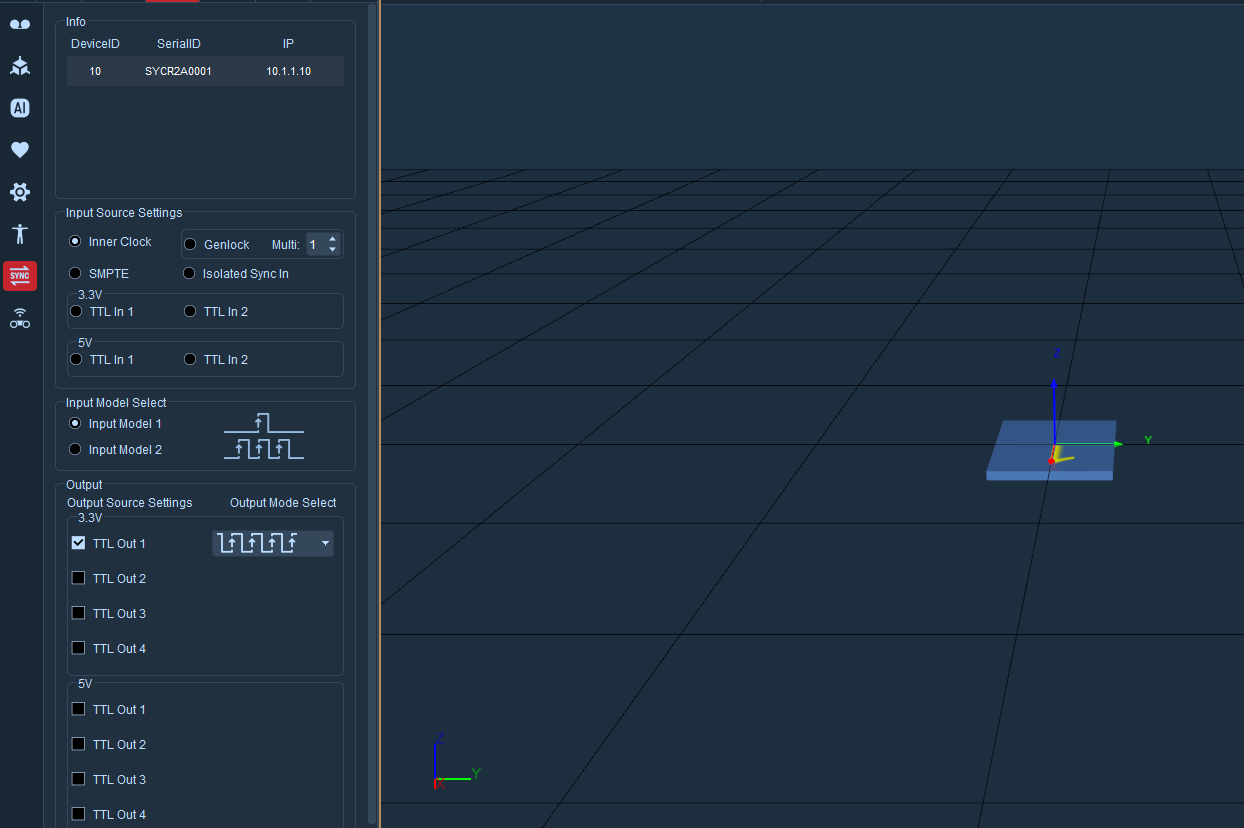
Using the time code as an example:
- First, connect the time code to the Sync Unit using a sync cable. Press and hold the power button on the time code to turn it on.
.png)
-
Open the software and connect the cameras. Click Settings and select Sync Unit Settings. In the Information section, choose the Sync Unit device, then check SMPTE, select Input Mode 2, and set the output to SMPTE.
-
Click Data Broadcast, scroll down to Time Code, and turn on the enable switch. Set the port to 5850 and the SMPTE Format to 24fps (matching the time code device). After clicking Play, the time displayed in the lower-left corner of the view will match the time code.
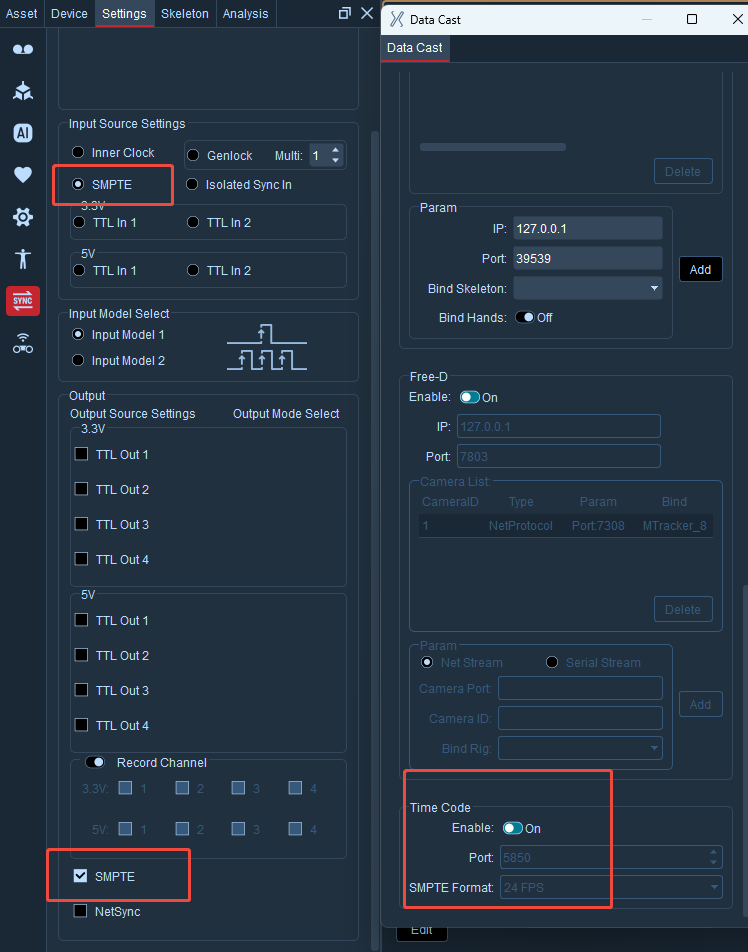
Sync Unit Software Features Overview
Input Source Settings
Internal Clock: Built-in sync trigger switch
Genlock-Multiplier: Synchronous frequency multiplication trigger input;
SMPTE: Time code setup switch
Isolated Sync In: Isolated sync input interface
3.3V / 5V: General TTL sync input interface
Input Modes
Input Mode 1: PWM rising edge triggers once
Input Mode 2: PWM rising edge triggers continuously
Output Source Settings
The 3V/5V output mode adopts general TTL synchronous output interface, with a total of 4 BNC ports. All ports output identical TTL digital synchronization signals, which are used to trigger and realize timing synchronization of multiple external devices. This synchronous output interface must work in pair with the synchronous input interface.
Recording Channels: When a channel is checked, it outputs the recording sync signal. In idle state, the channel outputs low level. After clicking the start recording button, the channel outputs high level and holds it. After clicking stop recording, it outputs low level and holds it.
SMPTE: The sync input interface implements triggering and synchronization of NOKOV optical motion capture cameras.
NetSync: NetSync is a network synchronization feature used to synchronize with external devices via network. The data format is publicly available.