Coordinate system alignment
-
The coordinate alignment function allows the XINGYING coordinate system to be aligned with the target coordinate system, enabling the XINGYING coordinate system to be shifted into the target coordinate system.
-
Precautions when using this function:
- First, determine the position of the target coordinate system to be aligned. At least six sets of data need to be collected for calculation, and the user needs to confirm the positions where the six sets of data are collected on the target coordinate system.
- To create a single-point asset, you need to collect the XYZ data of the naming point for that single-point asset.
- Define six positions, and place six Marker points at these six positions. Select one of the positions as the origin of the target coordinate system, and define the coordinate of this origin as (0,0,0). The remaining 5 points are in relative coordinate form to the origin. Complete the coordinate measurement of these 5 points and record the results.
-
Create a single-point asset and identify it. In the toolbar above the 3D view, click the "Coordinate Alignment" function button to open the settings interface.
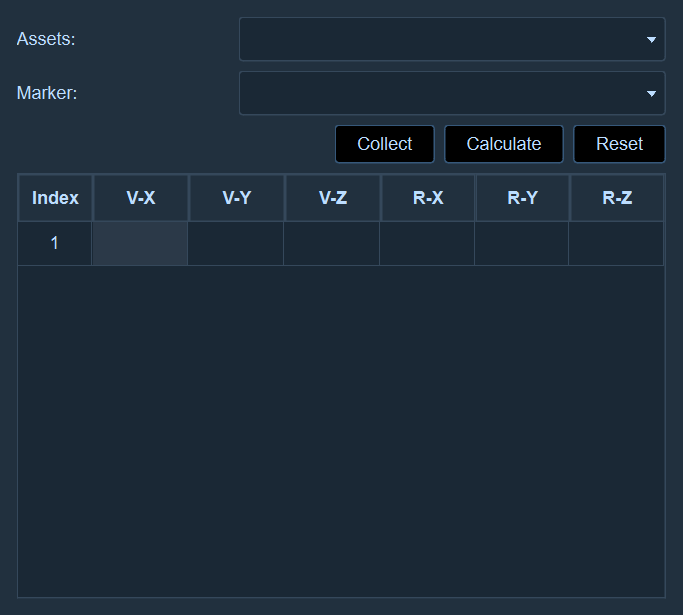
- Expand the asset list, select the created single-point asset, and the list of marker points below will display all the named point names of the currently selected asset. Select the named point of the single-point asset from the list as the collection target.

- After identifying the Marker point at the origin as a single-point asset, fill in the XYZ coordinate values of the origin in the "V-X, V-Y, V-Z" column of the table. The unit in the table is millimeters. After filling in, click the collection button. The system will automatically collect 200 frames of data to calculate the XYZ coordinate values of the collection object. The calculated values will be automatically filled in the "R-X, R-Y, R-Z" column of the table. After the data collection at the first position is completed, collect the data at the second position by identifying the Marker point at the second position as the single-point asset. Repeat the above operation for the remaining multiple positions to collect data.
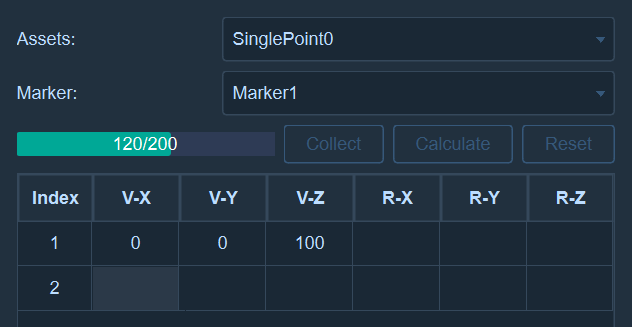
- At least six sets of data must be collected; otherwise, clicking the calculation button will result in a prompt stating "Insufficient data".
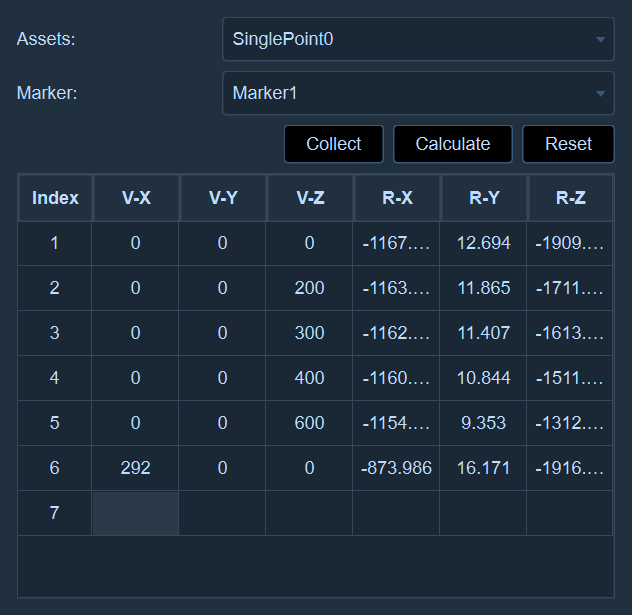
- After all the data have been collected, click the "Calculate" button and wait for the prompt indicating the completion of the calculation.
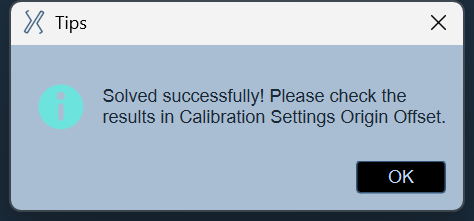
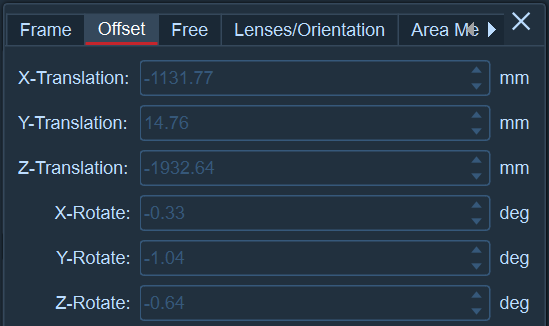
- After the calculation is completed, please open the calibration panel - calibration settings - origin offset to view the offset value. After the calculation is finished, the software will automatically pause the playback. After clicking "Start Playback", the coordinate system in the 3D view has successfully been shifted to the target coordinate system.