Bimodal Camera
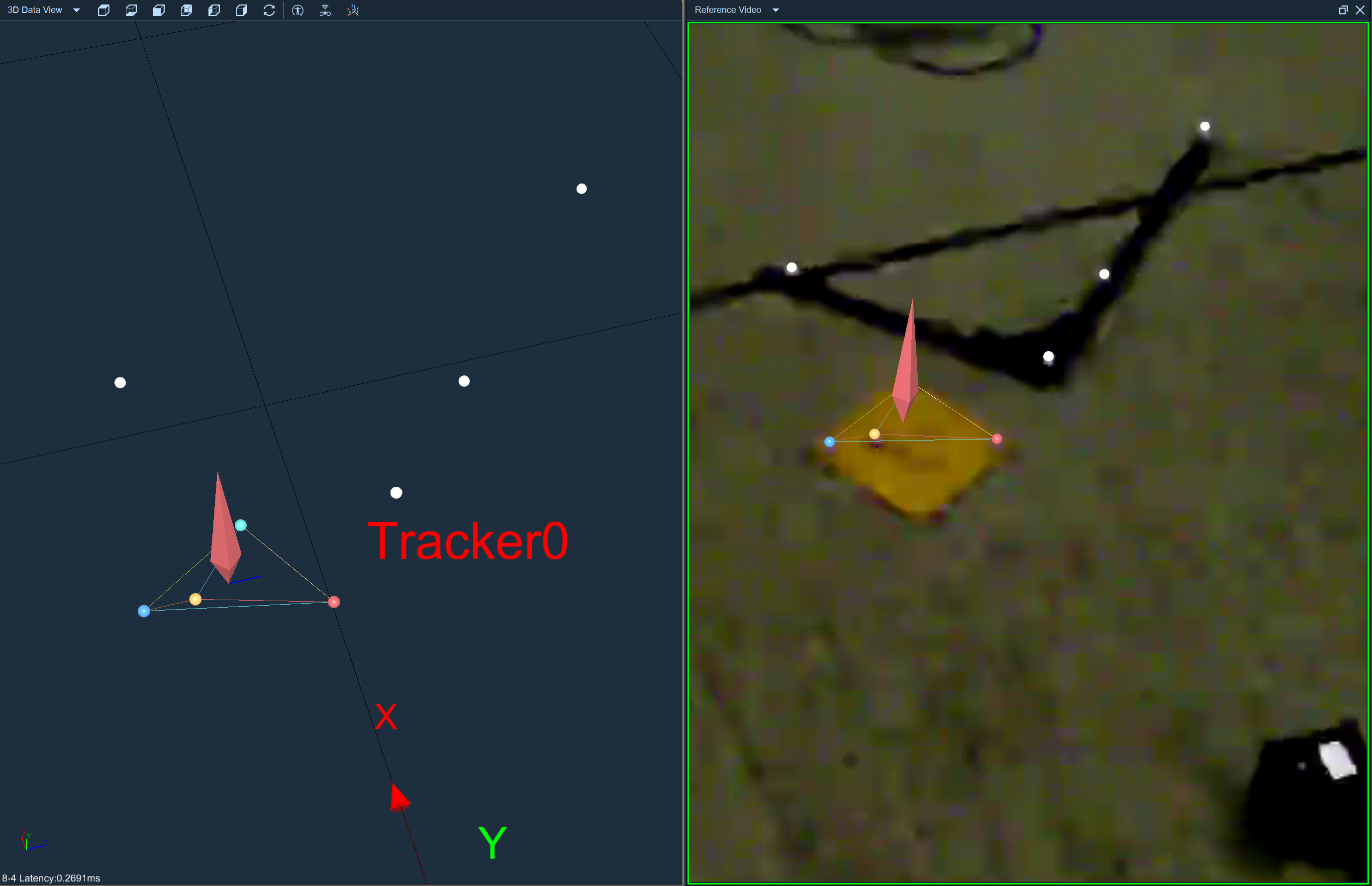
The software supports synchronous calibration of optical lenses and reference videos. After calibration is completed, marker points, connecting lines and skeleton models in the 3D view will be rendered overlaid on the frames of the reference video.
Hardware Connection
-
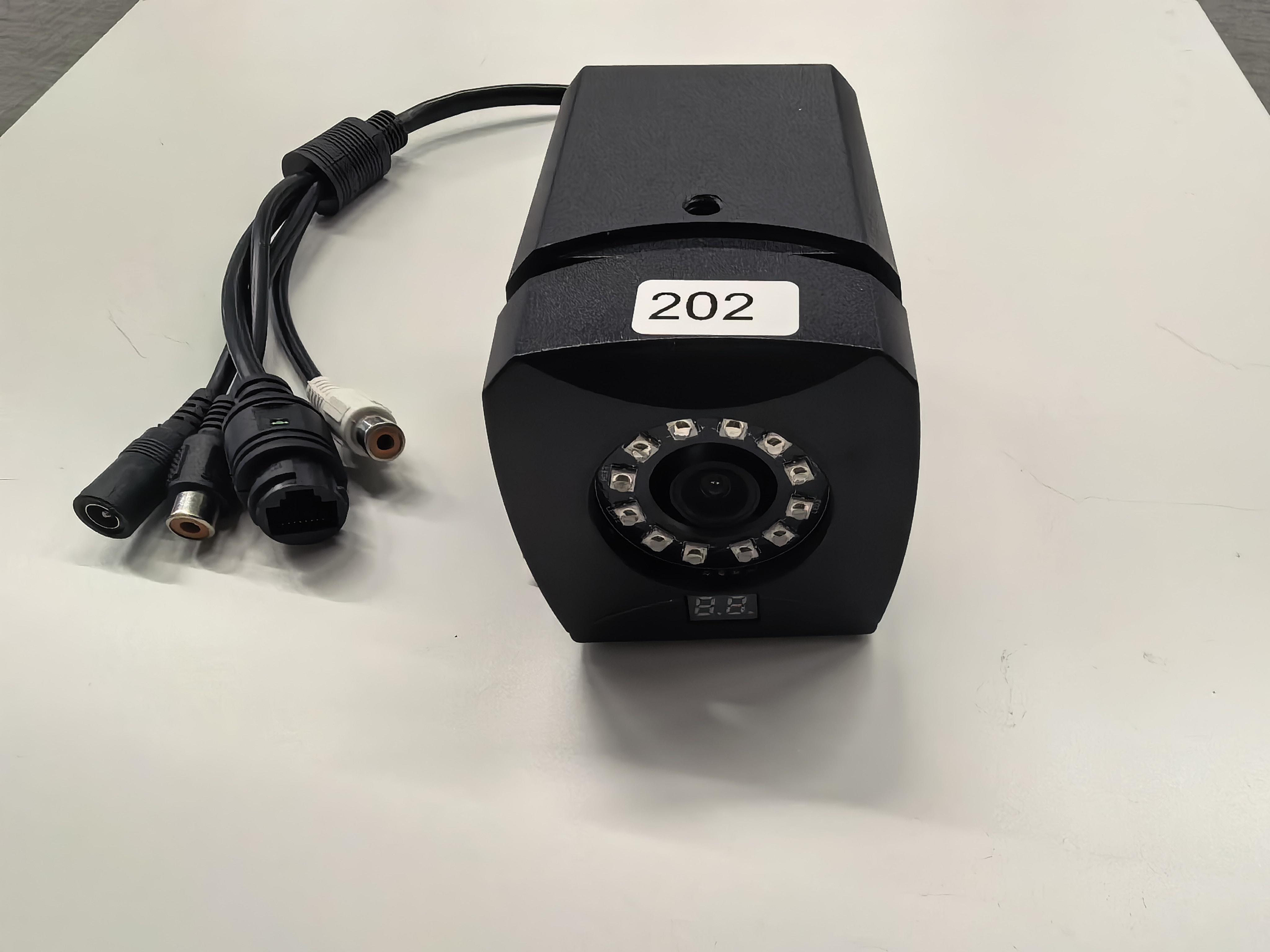
Mount the Bimodal cam 1.3 camera on the truss or fix it to a tripod, and adjust it to an appropriate angle facing the capture area.
-
Connect an Ethernet cable to the network port of the Bimodal cam 1.3 camera, and plug the other end of the Ethernet cable into the switch supplied with the optical lens.
Software connection and settings
- Launch the software, click the top menu bar [Third-Party Devices] → [Network Camera Configuration], enter the IP address of the Bimodal cam 1.3 camera (the IP label is located above the lens), set a custom device name, leave the username and password blank, and you can add one or more network cameras.
.png)
-
Click the connect button, and the software will prompt the detected number of optical lenses and Bimodal cam 1.3 cameras, then click play.
-
Open [Settings] → [Recording Settings] to configure the camera video mode: set it to monochrome mode when performing synchronous calibration with the optical lens; switch to color mode if you need to view the image from the Bimodal cam 1.3 camera.
-
Open the 2D view, double-click any Bimodal cam 1.3 camera to enter its independent single view. Open the device panel and adjust the threshold and brightness parameters until the 2D marker points can be stably extracted from the image. Perform the same configuration operations for the remaining Bimodal cam 1.3 cameras.
-
Open the reference video view to view images from the Bimodal cam 1.3 camera. The displayed images depend on the video mode you set.
calibration
- Open the calibration panel, select the [TL] calibration mode, and complete the joint calibration of the optical lens and Bimodal cam 1.3 camera.
The Bimodal cam 1.3 camera does not participate in 3D reconstruction
Video Overlay
- After calibration is completed, switch the video mode to color mode, and enable the reference video view and 3D view. The marker points, connecting lines and skeleton model in the 3D view will be overlaid on the reference video view.